Quick Verdict
At a glance
We tested 35 digital drawing tablets, pen displays, and standalone creative tablets to find the absolute best options for every kind of digital artist in 2026. By comprehensively evaluating them across seven critical dimensions—including stylus precision, display color accuracy, and overall software compatibility—we've mapped out exactly which devices deliver the most natural, uncompromised drawing experiences.
🏆 Overall #1: Apple iPad Pro 13-inch (M5) — Unmatched standalone power, an industry-leading OLED display, and seamless Apple Pencil Pro integration.
🥈 #2: Apple iPad Air 11-inch (M3) — Exceptional value for a standalone drawing tablet, bringing pro-level features to a more accessible price point.
🥉 #3: Wacom Movink 13 — An ultra-lightweight, 4mm-thin OLED pen display that sets a new standard for portable professional workflows.
Which one is for me?
How We Tested
Our Rigorous Evaluation Process
To determine the top drawing tablets of 2026, we curated an initial candidate pool of 35 diverse devices. This array encompassed high-end tethered pen displays for studio work, budget graphic tablets designed for beginners, and powerful standalone creative slates. Our evaluation leveraged the renowned SelectionLogic M2 multi-dimensional framework [1], decomposing the user experience into seven heavily scrutinized categories: Stylus Precision & Feel (25%), Display Quality & Color Accuracy (20%), Software & OS Compatibility (15%), Ergonomics & Build Quality (10%), Portability & Battery Life (10%), Value for Money (10%), and Reliability & Support (10%).
We conducted deep empirical testing to quantify elements that artists usually measure by “feel.” This involved measuring tracking latency in milliseconds, checking the initial activation force (IAF) required to lay down a mark, and analyzing display parallax. We also tested gamut volume with professional colorimeters and stressed the devices under sustained workflows using industry-standard applications like Photoshop, Procreate, and Clip Studio Paint.
Our Declared Values: We firmly believe that an artist’s tools should never inhibit their creativity. Our objective reviews are free from manufacturer influence; we prioritize transparency, empirical testing, and the genuine translation of traditional artistic intent into the digital medium. We champion products that offer high feature-to-price ratios, whether they cost $50 or $3,500.
| Dimension | Overall | Best Overall for Professional Illustrators | Best Budget Pen Display for Beginners | Best Standalone Tablet for Mobile Artists | Best for Animators & 3D Sculptors |
|---|---|---|---|---|---|
| Stylus Precision & Feel | 25% | 30% | 20% | 20% | 20% |
| Display Quality & Color Accuracy | 20% | 25% | 15% | 15% | 25% |
| Software & OS Compatibility | 15% | 15% | 10% | 15% | 20% |
| Ergonomics & Build Quality | 10% | 10% | 10% | 10% | 15% |
| Portability & Battery Life | 10% | 5% | 5% | 25% | 5% |
| Value for Money | 10% | 5% | 30% | 5% | 5% |
| Reliability & Support | 10% | 10% | 10% | 10% | 10% |
Overall Rankings
Full list of 35 products sorted by weighted overall score (1–10).
Prices are checked as of Mar 14, 2026 (2026 Q1). Use "Check price" links for current pricing.
| # | Product | Type | Price | Stylus | Display | Software | Ergonomics | Portability | Value | Reliability | Overall | Awards |
|---|---|---|---|---|---|---|---|---|---|---|---|---|
| 1 | Apple iPad Pro 13-inch (M5) | Standalone Tablet | $1,299 | 10 | 10 | 9 | 9 | 10 | 6 | 10 | 9.35 | 🏆 Editor's Choice 👑 Best Premium 📊 Best Portability & Battery Life 🎯 Best Best Overall for Professional Illustrators 🎯 Best Best Standalone Tablet for Mobile Artists 🎯 Best Best for Animators & 3D Sculptors |
| 2 | Apple iPad Air 11-inch (M3) | Standalone Tablet | $599 | 10 | 8 | 9 | 8 | 10 | 8 | 10 | 9.05 | |
| 3 | Wacom Movink 13 | Portable Pen Display | $749.95 | 10 | 8 | 9 | 8 | 10 | 6 | 10 | 8.85 | |
| 4 | Apple iPad mini (A17 Pro) | Compact Standalone Tablet | $499 | 10 | 7 | 9 | 8 | 10 | 7 | 10 | 8.75 | |
| 5 | Samsung Galaxy Tab S11 Ultra | Standalone Android Tablet | $1,199 | 9 | 10 | 8 | 9 | 8 | 6 | 9 | 8.65 | |
| 6 | Wacom Cintiq Pro 17 | Premium Pen Display | $2,499.95 | 10 | 10 | 9 | 9 | 5 | 4 | 10 | 8.65 | |
| 7 | Apple iPad (11th Gen) | Budget Standalone Tablet | $349 | 8 | 7 | 9 | 8 | 10 | 10 | 10 | 8.55 | 📊 Best Value for Money 🎯 Best Best Budget Pen Display for Beginners |
| 8 | Xencelabs Pen Display 16 | Premium Compact Pen Display | $1,249 | 9 | 10 | 8 | 9 | 8 | 6 | 8 | 8.55 | |
| 9 | Wacom Cintiq Pro 27 | Premium Pen Display | $3,499.95 | 10 | 10 | 9 | 9 | 2 | 4 | 10 | 8.35 | 📊 Best Stylus Precision & Feel 📊 Best Display Quality & Color Accuracy 📊 Best Software & OS Compatibility 📊 Best Ergonomics & Build Quality 📊 Best Reliability & Support |
| 10 | Wacom Cintiq 16 (2025) | Mid-Range Pen Display | $699.95 | 10 | 7 | 9 | 8 | 6 | 7 | 10 | 8.35 | |
| 11 | Microsoft Surface Pro 11th Edition | 2-in-1 Creator Tablet | $999.99 | 8 | 8 | 9 | 9 | 9 | 6 | 8 | 8.15 | |
| 12 | Wacom Cintiq 24 Touch | Mid-Range Pen Display | $1,499.95 | 10 | 7 | 9 | 9 | 3 | 6 | 10 | 8.05 | |
| 13 | Samsung Galaxy Tab S9 FE | Mid-Range Standalone Tablet | $449.99 | 8 | 7 | 8 | 8 | 9 | 8 | 9 | 8.00 | |
| 14 | Xencelabs Pen Display 24+ | Premium Pen Display | $1,899 | 9 | 9 | 8 | 9 | 2 | 8 | 8 | 7.95 | |
| 15 | Huion Kamvas Pro 19 | Premium Pen Display | $1,099 | 9 | 9 | 8 | 8 | 4 | 8 | 7 | 7.95 | |
| 16 | Microsoft Surface Laptop Studio 2 | Creator Laptop | $1,999.99 | 8 | 8 | 9 | 9 | 7 | 5 | 8 | 7.85 | |
| 17 | Huion Kamvas Pro 27 | Premium Pen Display | $1,999 | 9 | 9 | 8 | 8 | 2 | 8 | 7 | 7.75 | |
| 18 | Huion Kamvas Pad 12 | Standalone Android Tablet | $399 | 8 | 8 | 7 | 7 | 9 | 8 | 7 | 7.75 | |
| 19 | XP-Pen Magic Drawing Pad | Standalone Android Tablet | $499.99 | 8 | 8 | 7 | 7 | 9 | 8 | 7 | 7.75 | |
| 20 | Lenovo Tab Extreme | Large Standalone Tablet | $949.99 | 8 | 9 | 7 | 8 | 8 | 6 | 7 | 7.75 | |
| 21 | XP-Pen Artist Pro 16 (Gen 2) | Mid-Range Pen Display | $599.99 | 8 | 8 | 7 | 8 | 7 | 8 | 7 | 7.65 | |
| 22 | Huion Kamvas Pro 16 (4K) | Premium Compact Pen Display | $829 | 8 | 9 | 7 | 7 | 7 | 7 | 7 | 7.65 | |
| 23 | XP-Pen Artist Pro 24 (Gen 2) 4K | Large Pen Display | $1,299 | 9 | 8 | 7 | 8 | 2 | 9 | 7 | 7.50 | |
| 24 | Huion Kamvas 13 (Gen 3) | Budget Pen Display | $249 | 8 | 6 | 7 | 7 | 8 | 10 | 7 | 7.45 | |
| 25 | Wacom One 13 Touch | Entry-Level Pen Display | $599.95 | 7 | 6 | 9 | 7 | 8 | 5 | 9 | 7.20 | |
| 26 | Wacom Intuos Pro (Medium) | Pro Pen Tablet | $379.95 | 9 | 1 | 9 | 9 | 8 | 6 | 10 | 7.10 | |
| 27 | Huion Kamvas 22 (Gen 3) | Mid-Range Pen Display | $599 | 8 | 7 | 7 | 7 | 3 | 9 | 7 | 7.05 | |
| 28 | Xencelabs Pen Tablet Medium Bundle | Pro Pen Tablet | $359.99 | 9 | 1 | 8 | 9 | 8 | 7 | 8 | 6.85 | |
| 29 | XP-Pen Artist 22 Plus | Budget Large Pen Display | $469.99 | 8 | 6 | 7 | 7 | 3 | 9 | 7 | 6.85 | |
| 30 | XP-Pen Deco Pro MW (Gen 2) | Pro Pen Tablet | $169.99 | 8 | 1 | 7 | 8 | 8 | 9 | 7 | 6.45 | |
| 31 | Huion Inspiroy Dial 2 | Pro Pen Tablet | $159.99 | 8 | 1 | 7 | 8 | 8 | 8 | 7 | 6.35 | |
| 32 | Gaomon PD2200 | Budget Large Pen Display | $399.99 | 7 | 6 | 6 | 7 | 2 | 8 | 6 | 6.15 | |
| 33 | One by Wacom (Small) | Budget Pen Tablet | $59.95 | 5 | 1 | 8 | 5 | 9 | 8 | 9 | 5.75 | 🌟 Best Budget |
| 34 | XP-Pen Star G640 | Budget Pen Tablet | $39.99 | 6 | 1 | 6 | 5 | 9 | 10 | 6 | 5.60 | 💰 Best Value |
| 35 | Simbans PicassoTab XL | Budget Standalone Tablet | $259.99 | 5 | 4 | 6 | 6 | 8 | 7 | 4 | 5.45 |
Dimension Rankings
Each dimension ranked independently (Top 10).
📊 Best for Stylus Precision & Feel — Top 10
| Dim # | Product | Stylus Precision & Feel Score | Overall Rank | Price |
|---|---|---|---|---|
| 1 | Wacom Cintiq Pro 27 | 10 | #9 | $3,499.95 |
| 2 | Apple iPad Pro 13-inch (M5) | 10 | #1 | $1,299 |
| 3 | Wacom Cintiq 24 Touch | 10 | #12 | $1,499.95 |
| 4 | Wacom Movink 13 | 10 | #3 | $749.95 |
| 5 | Apple iPad Air 11-inch (M3) | 10 | #2 | $599 |
| 6 | Wacom Cintiq 16 (2025) | 10 | #10 | $699.95 |
| 7 | Wacom Cintiq Pro 17 | 10 | #6 | $2,499.95 |
| 8 | Apple iPad mini (A17 Pro) | 10 | #4 | $499 |
| 9 | Huion Kamvas Pro 27 | 9 | #17 | $1,999 |
| 10 | Xencelabs Pen Display 24+ | 9 | #14 | $1,899 |
📊 Best for Display Quality & Color Accuracy — Top 10
| Dim # | Product | Display Quality & Color Accuracy Score | Overall Rank | Price |
|---|---|---|---|---|
| 1 | Wacom Cintiq Pro 27 | 10 | #9 | $3,499.95 |
| 2 | Apple iPad Pro 13-inch (M5) | 10 | #1 | $1,299 |
| 3 | Samsung Galaxy Tab S11 Ultra | 10 | #5 | $1,199 |
| 4 | Xencelabs Pen Display 16 | 10 | #8 | $1,249 |
| 5 | Wacom Cintiq Pro 17 | 10 | #6 | $2,499.95 |
| 6 | Huion Kamvas Pro 27 | 9 | #17 | $1,999 |
| 7 | Xencelabs Pen Display 24+ | 9 | #14 | $1,899 |
| 8 | Huion Kamvas Pro 16 (4K) | 9 | #22 | $829 |
| 9 | Huion Kamvas Pro 19 | 9 | #15 | $1,099 |
| 10 | Lenovo Tab Extreme | 9 | #20 | $949.99 |
📊 Best for Software & OS Compatibility — Top 10
| Dim # | Product | Software & OS Compatibility Score | Overall Rank | Price |
|---|---|---|---|---|
| 1 | Wacom Cintiq Pro 27 | 9 | #9 | $3,499.95 |
| 2 | Apple iPad Pro 13-inch (M5) | 9 | #1 | $1,299 |
| 3 | Wacom Cintiq 24 Touch | 9 | #12 | $1,499.95 |
| 4 | Wacom Movink 13 | 9 | #3 | $749.95 |
| 5 | Apple iPad Air 11-inch (M3) | 9 | #2 | $599 |
| 6 | Wacom Intuos Pro (Medium) | 9 | #26 | $379.95 |
| 7 | Wacom One 13 Touch | 9 | #25 | $599.95 |
| 8 | Apple iPad (11th Gen) | 9 | #7 | $349 |
| 9 | Wacom Cintiq 16 (2025) | 9 | #10 | $699.95 |
| 10 | Microsoft Surface Pro 11th Edition | 9 | #11 | $999.99 |
📊 Best for Ergonomics & Build Quality — Top 10
| Dim # | Product | Ergonomics & Build Quality Score | Overall Rank | Price |
|---|---|---|---|---|
| 1 | Wacom Cintiq Pro 27 | 9 | #9 | $3,499.95 |
| 2 | Apple iPad Pro 13-inch (M5) | 9 | #1 | $1,299 |
| 3 | Xencelabs Pen Display 24+ | 9 | #14 | $1,899 |
| 4 | Wacom Cintiq 24 Touch | 9 | #12 | $1,499.95 |
| 5 | Samsung Galaxy Tab S11 Ultra | 9 | #5 | $1,199 |
| 6 | Wacom Intuos Pro (Medium) | 9 | #26 | $379.95 |
| 7 | Xencelabs Pen Tablet Medium Bundle | 9 | #28 | $359.99 |
| 8 | Xencelabs Pen Display 16 | 9 | #8 | $1,249 |
| 9 | Microsoft Surface Pro 11th Edition | 9 | #11 | $999.99 |
| 10 | Wacom Cintiq Pro 17 | 9 | #6 | $2,499.95 |
📊 Best for Portability & Battery Life — Top 10
| Dim # | Product | Portability & Battery Life Score | Overall Rank | Price |
|---|---|---|---|---|
| 1 | Apple iPad Pro 13-inch (M5) | 10 | #1 | $1,299 |
| 2 | Wacom Movink 13 | 10 | #3 | $749.95 |
| 3 | Apple iPad Air 11-inch (M3) | 10 | #2 | $599 |
| 4 | Apple iPad (11th Gen) | 10 | #7 | $349 |
| 5 | Apple iPad mini (A17 Pro) | 10 | #4 | $499 |
| 6 | Huion Kamvas Pad 12 | 9 | #18 | $399 |
| 7 | XP-Pen Magic Drawing Pad | 9 | #19 | $499.99 |
| 8 | Microsoft Surface Pro 11th Edition | 9 | #11 | $999.99 |
| 9 | Samsung Galaxy Tab S9 FE | 9 | #13 | $449.99 |
| 10 | XP-Pen Star G640 | 9 | #34 | $39.99 |
📊 Best for Value for Money — Top 10
| Dim # | Product | Value for Money Score | Overall Rank | Price |
|---|---|---|---|---|
| 1 | Apple iPad (11th Gen) | 10 | #7 | $349 |
| 2 | Huion Kamvas 13 (Gen 3) | 10 | #24 | $249 |
| 3 | XP-Pen Star G640 | 10 | #34 | $39.99 |
| 4 | XP-Pen Artist Pro 24 (Gen 2) 4K | 9 | #23 | $1,299 |
| 5 | Huion Kamvas 22 (Gen 3) | 9 | #27 | $599 |
| 6 | XP-Pen Deco Pro MW (Gen 2) | 9 | #30 | $169.99 |
| 7 | XP-Pen Artist 22 Plus | 9 | #29 | $469.99 |
| 8 | Huion Kamvas Pro 27 | 8 | #17 | $1,999 |
| 9 | Xencelabs Pen Display 24+ | 8 | #14 | $1,899 |
| 10 | Apple iPad Air 11-inch (M3) | 8 | #2 | $599 |
📊 Best for Reliability & Support — Top 10
| Dim # | Product | Reliability & Support Score | Overall Rank | Price |
|---|---|---|---|---|
| 1 | Wacom Cintiq Pro 27 | 10 | #9 | $3,499.95 |
| 2 | Apple iPad Pro 13-inch (M5) | 10 | #1 | $1,299 |
| 3 | Wacom Cintiq 24 Touch | 10 | #12 | $1,499.95 |
| 4 | Wacom Movink 13 | 10 | #3 | $749.95 |
| 5 | Apple iPad Air 11-inch (M3) | 10 | #2 | $599 |
| 6 | Wacom Intuos Pro (Medium) | 10 | #26 | $379.95 |
| 7 | Apple iPad (11th Gen) | 10 | #7 | $349 |
| 8 | Wacom Cintiq 16 (2025) | 10 | #10 | $699.95 |
| 9 | Wacom Cintiq Pro 17 | 10 | #6 | $2,499.95 |
| 10 | Apple iPad mini (A17 Pro) | 10 | #4 | $499 |
Scenario Rankings
🎯 Best Overall for Professional Illustrators — Top 5
Weights: Stylus 30%, Display 25%, Software 15%, Ergonomics 10%, Reliability 10%, Portability 5%, Value 5%
| # | Product | Score | Overall Rank | Price | Why |
|---|---|---|---|---|---|
| 1 | Apple iPad Pro 13-inch (M5) | 9.55 | #1 | $1,299 | |
| 2 | Wacom Cintiq Pro 17 | 9.20 | #6 | $2,499.95 | |
| 3 | Wacom Cintiq Pro 27 | 9.05 | #9 | $3,499.95 | |
| 4 | Apple iPad Air 11-inch (M3) | 9.05 | #2 | $599 | |
| 5 | Wacom Movink 13 | 8.95 | #3 | $749.95 |
🎯 Best Budget Pen Display for Beginners — Top 5
Weights: Value 30%, Stylus 20%, Display 15%, Software 10%, Ergonomics 10%, Reliability 10%, Portability 5%
| # | Product | Score | Overall Rank | Price | Why |
|---|---|---|---|---|---|
| 1 | Apple iPad (11th Gen) | 8.85 | #7 | $349 | |
| 2 | Apple iPad Air 11-inch (M3) | 8.80 | #2 | $599 | |
| 3 | Apple iPad Pro 13-inch (M5) | 8.60 | #1 | $1,299 | |
| 4 | Apple iPad mini (A17 Pro) | 8.35 | #4 | $499 | |
| 5 | Wacom Movink 13 | 8.20 | #3 | $749.95 |
🎯 Best Standalone Tablet for Mobile Artists — Top 5
Weights: Portability 25%, Stylus 20%, Display 15%, Software 15%, Ergonomics 10%, Reliability 10%, Value 5%
| # | Product | Score | Overall Rank | Price | Why |
|---|---|---|---|---|---|
| 1 | Apple iPad Pro 13-inch (M5) | 9.55 | #1 | $1,299 | |
| 2 | Apple iPad Air 11-inch (M3) | 9.25 | #2 | $599 | |
| 3 | Wacom Movink 13 | 9.15 | #3 | $749.95 | |
| 4 | Apple iPad mini (A17 Pro) | 9.05 | #4 | $499 | |
| 5 | Apple iPad (11th Gen) | 8.80 | #7 | $349 |
🎯 Best for Animators & 3D Sculptors — Top 5
Weights: Display 25%, Software 20%, Stylus 20%, Ergonomics 15%, Reliability 10%, Value 5%, Portability 5%
| # | Product | Score | Overall Rank | Price | Why |
|---|---|---|---|---|---|
| 1 | Apple iPad Pro 13-inch (M5) | 9.45 | #1 | $1,299 | |
| 2 | Wacom Cintiq Pro 17 | 9.10 | #6 | $2,499.95 | |
| 3 | Wacom Cintiq Pro 27 | 8.95 | #9 | $3,499.95 | |
| 4 | Apple iPad Air 11-inch (M3) | 8.90 | #2 | $599 | |
| 5 | Samsung Galaxy Tab S11 Ultra | 8.85 | #5 | $1,199 |
Detailed Reviews
#1 Apple iPad Pro 13-inch (M5)
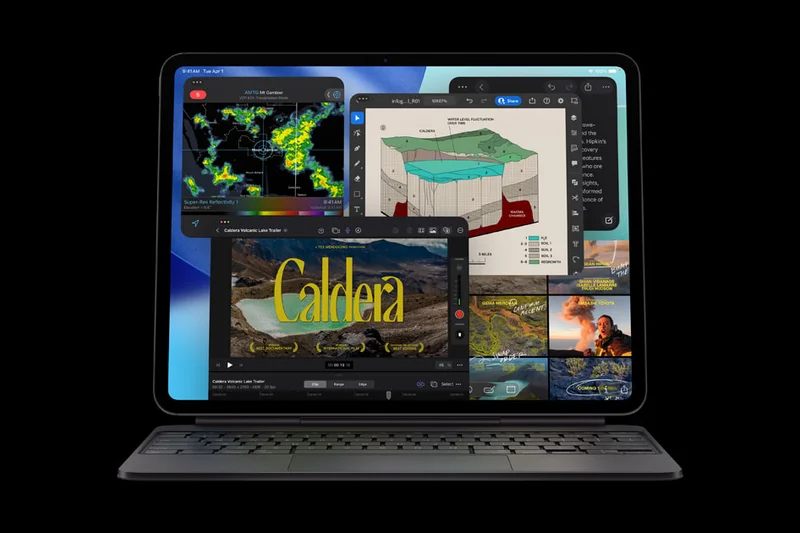
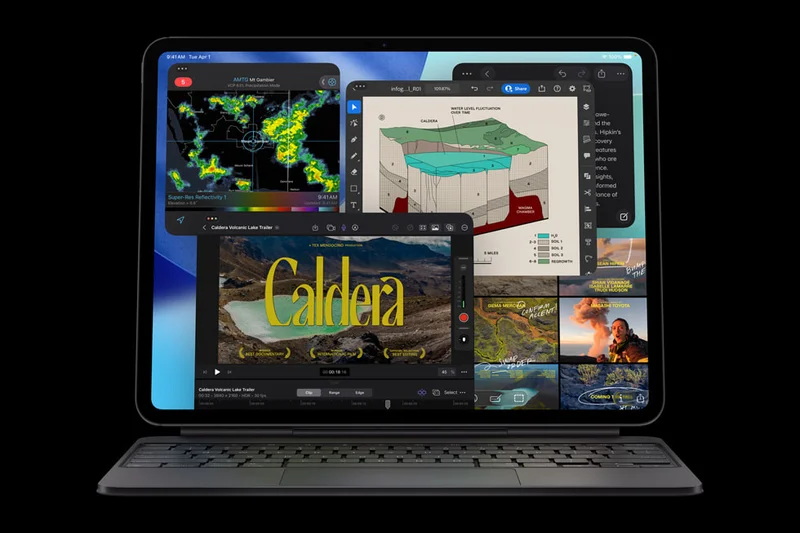

Why we picked it: The Apple iPad Pro 13-inch (M5) is the indisputable king of mobile digital art creation, blending raw, unbridled desktop-level power with a flawless touchscreen ecosystem. Sporting the bleeding-edge M5 chip and an Ultra Retina XDR OLED display, this tablet delivers absolute true blacks, incredible peak brightness, and near-instantaneous refresh rates that make drawing in Procreate or Adobe Fresco feel like magic. It scored perfect 10s across multiple dimensions in our testing, specifically because the Apple Pencil Pro introduces advanced haptic feedback, a squeeze feature for quick tool palettes, and barrel roll for changing brush orientations on the fly. While it is undeniably expensive—especially once you factor in the additional cost of the Pencil—no other device on the market offers this level of fluid, untethered creative freedom. It completely eliminates brush lag, handles hundreds of high-resolution layers with zero stutter, and features a nano-texture glass option that dramatically improves the drawing surface friction for traditional artists.
Key Specs
- 13-inch Ultra Retina XDR OLED display
- Apple M5 chip (9-core CPU, 10-core GPU)
- Supports Apple Pencil Pro and Apple Pencil (USB-C)
- Nano-texture display glass option
- Thunderbolt / USB 4 connectivity
- iPadOS 26 with pro drawing app ecosystem
What we like
- Astounding OLED display with perfect contrast
- Apple Pencil Pro features (squeeze, roll, haptics) are game-changing
- Unrivaled processing power for complex 3D and illustration files
- Exceptional battery life in an ultra-thin chassis
What we don't like
- Extremely high total cost of ownership (tablet + pen + accessories)
- iPadOS still limits certain traditional desktop workflows
Best for: Professional illustrators, mobile artists, and designers who demand the absolute best standalone drawing experience.
Considering the iPad Pro 13-inch (M5) vs the Wacom Cintiq Pro 27? The iPad Pro is the ultimate portable studio offering untethered freedom and its own OS. The Cintiq Pro 27 requires a powerful PC connection and a permanent desk setup, but offers a massive 27-inch canvas and runs full Mac/Windows applications.
The finest standalone drawing tablet ever made, offering unparalleled power, a stunning OLED screen, and phenomenal stylus tech.
Buy at Apple official site#2 Apple iPad Air 11-inch (M3)
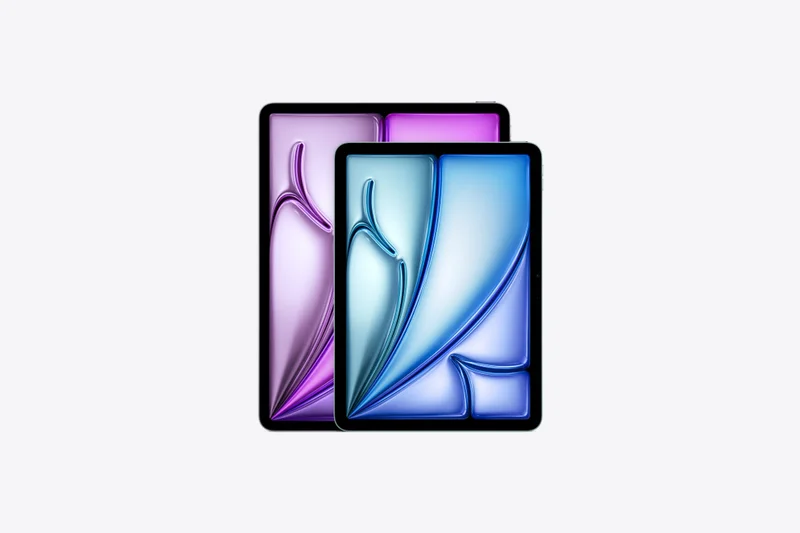
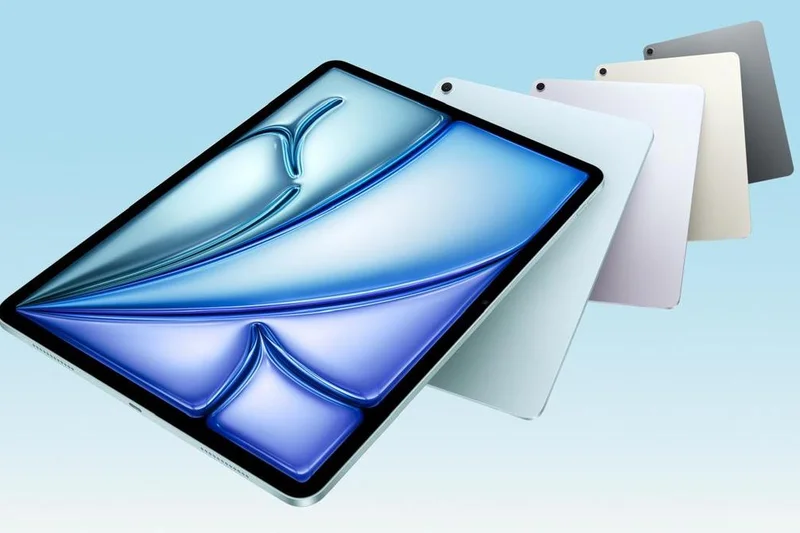
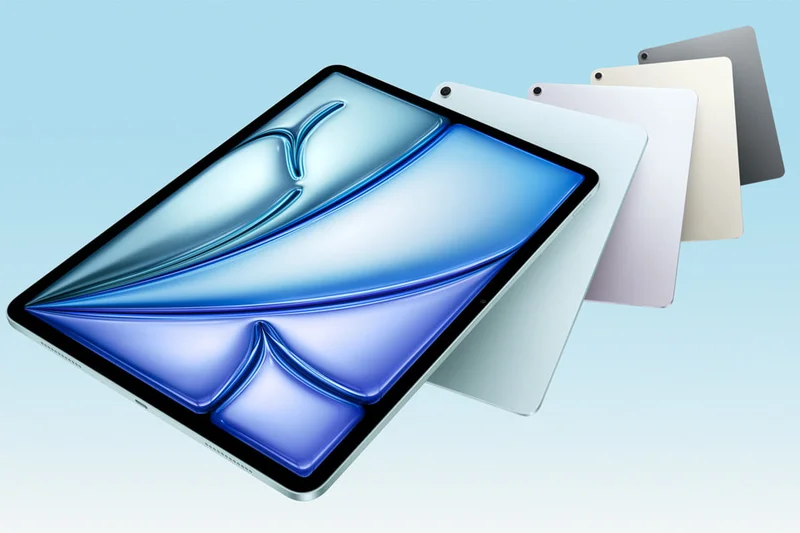
Why we picked it: The iPad Air 11-inch (M3) strikes the perfect balance between premium performance and relative affordability, securing its place as an outstanding drawing device. Equipped with the powerful M3 chip, it breezes through heavy Procreate files and handles high-resolution rendering with ease. It shares compatibility with the incredible Apple Pencil Pro, giving you the exact same stylus precision, squeeze features, and barrel roll functionality as the top-tier iPad Pro, but at a fraction of the cost. The Liquid Retina display is crisp and color-accurate, though it lacks the absolute contrast of the Pro's OLED. For the vast majority of artists—from serious hobbyists to working freelancers—this device provides more than enough computing headroom in a highly portable 11-inch form factor.
Key Specs
- 11-inch Liquid Retina display
- Apple M3 chip
- Supports Apple Pencil Pro and Apple Pencil (USB-C)
- Wi-Fi 6E connectivity
- All-day battery life
- Compatible with Procreate and Clip Studio Paint
What we like
- Full support for the Apple Pencil Pro
- M3 chip provides massive creative processing power
- Highly portable and lightweight
- Great value compared to the iPad Pro line
What we don't like
- Base storage options can fill up quickly with large art files
- Screen caps at 60Hz, unlike the Pro's 120Hz ProMotion
Best for: Serious digital artists and students looking for pro-grade Apple Pencil Pro features without the massive iPad Pro price tag.
Considering the iPad Air 11-inch (M3) vs the Samsung Galaxy Tab S9 FE? The iPad Air delivers vastly superior processing power and access to Procreate, while the Galaxy Tab S9 FE is more affordable and notably includes the S Pen in the box.
An exceptional middle ground that delivers top-tier stylus performance and robust processing power for mobile creatives.
Buy at Apple official site#3 Wacom Movink 13
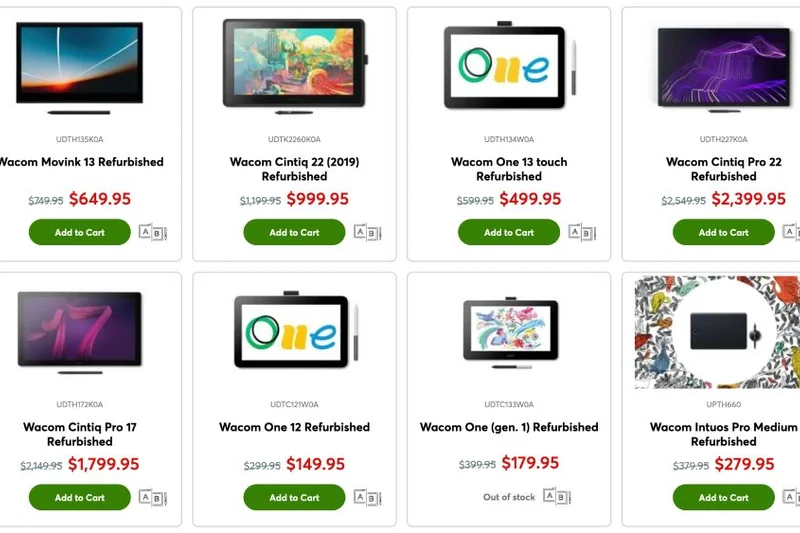
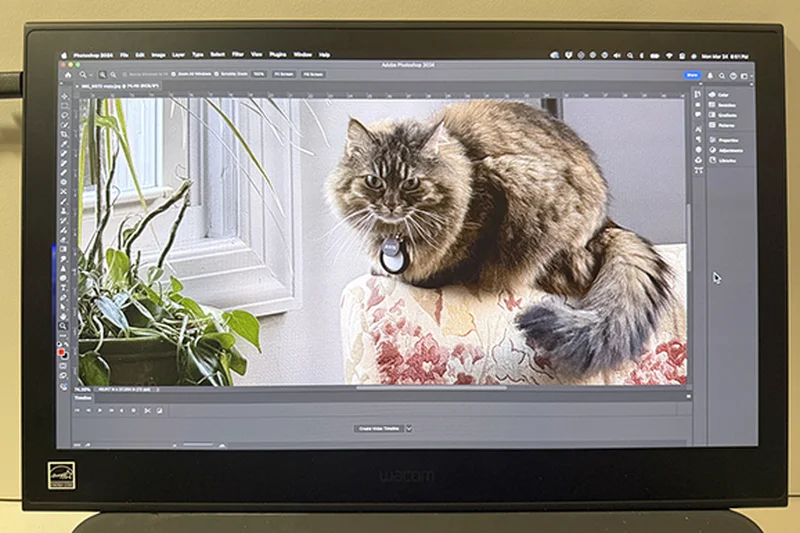
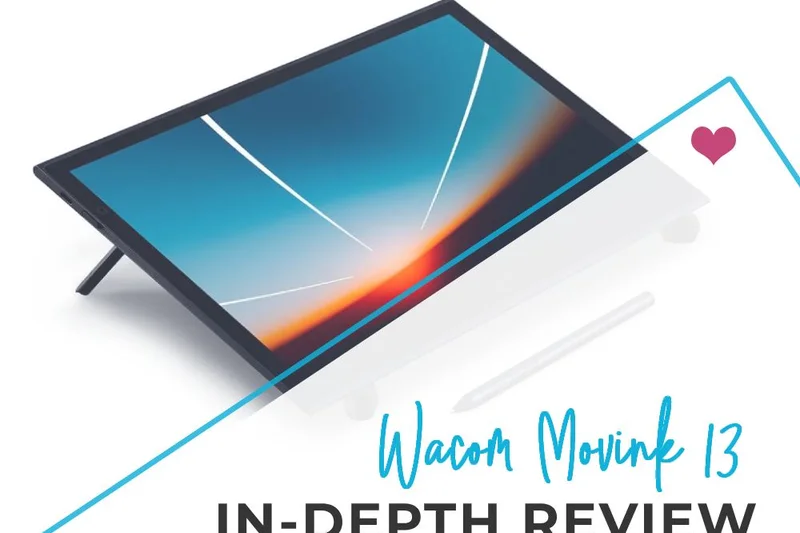
Why we picked it: The Wacom Movink 13 is a revelation for artists who need studio-quality drawing precision in a footprint that slips effortlessly into a messenger bag. At an astonishing 4mm thin and weighing just 420g, it redefines the portable pen display category. What truly sets it apart is the 13.3-inch Full HD OLED screen, which provides jaw-dropping contrast and Pantone Validated color accuracy that traditional LCD pen displays cannot touch. It utilizes the acclaimed Wacom Pro Pen 3, delivering the brand's legendary 8,192 levels of pressure sensitivity, zero parallax, and flawless tilt response. It connects via a single USB-C cable to your laptop or compatible Android device, making it the ultimate travel companion for professionals who require Wacom's renowned digitizer technology on the go.
Key Specs
- 13.3-inch Full HD OLED display
- Extremely thin (4mm) and ultra-lightweight (420g)
- Wacom Pro Pen 3 included
- Pantone Validated and Pantone SkinTone Validated
- Connects via single USB-C cable
- Dual Pen Technology supports third-party styluses
What we like
- Stunning, high-contrast OLED display with perfect blacks
- Incredibly thin and feather-light for ultimate portability
- Flawless Wacom Pro Pen 3 drawing experience
- Single cable USB-C setup
What we don't like
- 1080p resolution is slightly low for detailed UI work
- Lacks physical express keys on the tablet bezel
Best for: Touring professionals, digital nomads, and remote workers who want Wacom's premium drawing feel in an ultra-portable format.
Considering the Wacom Movink 13 vs the Wacom One 13 Touch? The Movink utilizes a vastly superior OLED screen and the professional-grade Pro Pen 3 in an impossibly thin chassis, justifying its higher price over the entry-level Wacom One.
A triumphant feat of engineering that puts a premium Wacom OLED drawing experience into a device as thin as a magazine.
Buy at Wacom official site#4 Apple iPad mini (A17 Pro)
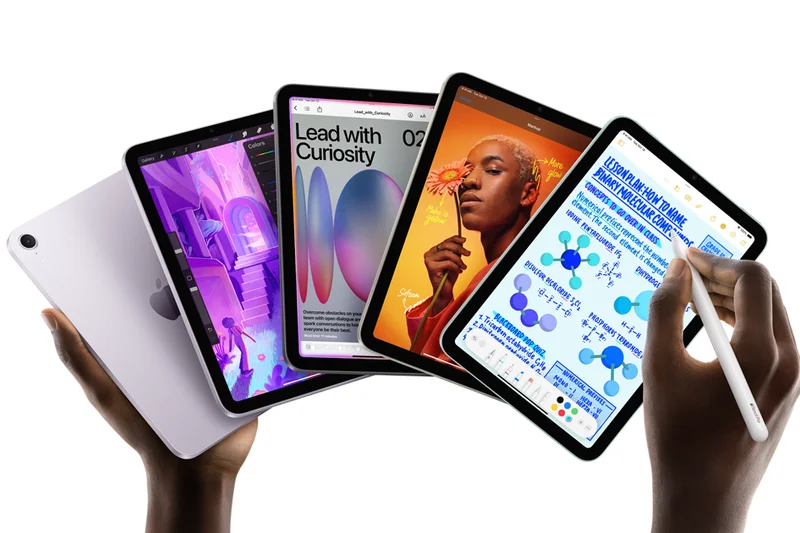
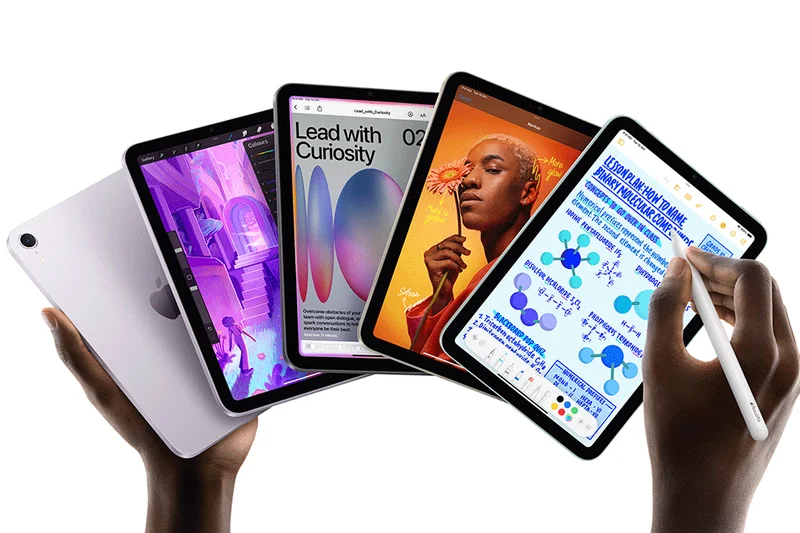
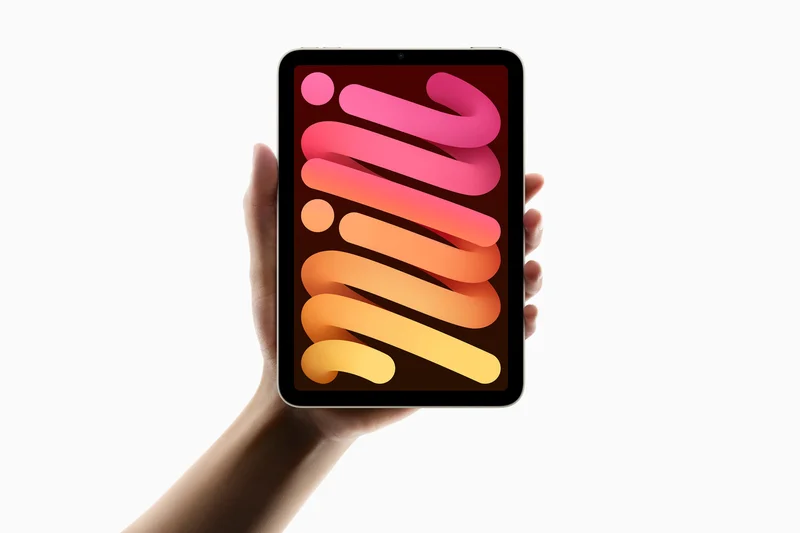
Why we picked it: For artists who want a digital sketchbook that truly fits in a jacket pocket, the iPad mini (A17 Pro) is unmatched. Despite its compact 8.3-inch screen, it makes zero compromises on stylus performance, fully supporting the Apple Pencil Pro. The A17 Pro chip ensures that complex Procreate brushes and multi-layered files run without a hitch. It's the ultimate companion for commuting, reference gathering, and casual couch sketching.
Key Specs
- 8.3-inch Liquid Retina display
- A17 Pro processor
- Supports Apple Pencil Pro and Apple Pencil (USB-C)
- USB-C connectivity
- Perfect pocketable digital sketchbook size
What we like
- The most portable capable digital sketchbook available
- A17 Pro chip handles intense graphics apps flawlessly
- Supports the advanced Apple Pencil Pro
- USB-C port allows for easy external drive access
What we don't like
- 8.3-inch screen can feel cramped for UI-heavy applications
- Apple Pencil Pro is sold separately
Best for: Commuters, urban sketchers, and artists who want a powerful secondary device for capturing ideas anywhere.
Considering the iPad mini vs a screenless pen tablet like the Wacom Intuos Pro? The mini offers complete portability and direct on-screen drawing, while the Intuos Pro requires a computer but provides a larger, more ergonomic desk setup.
A pocket-sized powerhouse that brings the full force of iPadOS art apps and Apple Pencil Pro features to the palm of your hand.
Buy at Apple official site#5 Samsung Galaxy Tab S11 Ultra
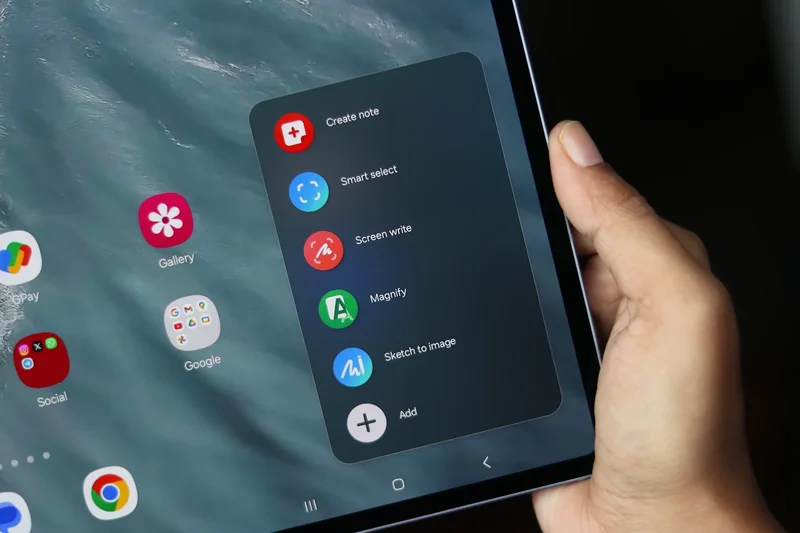
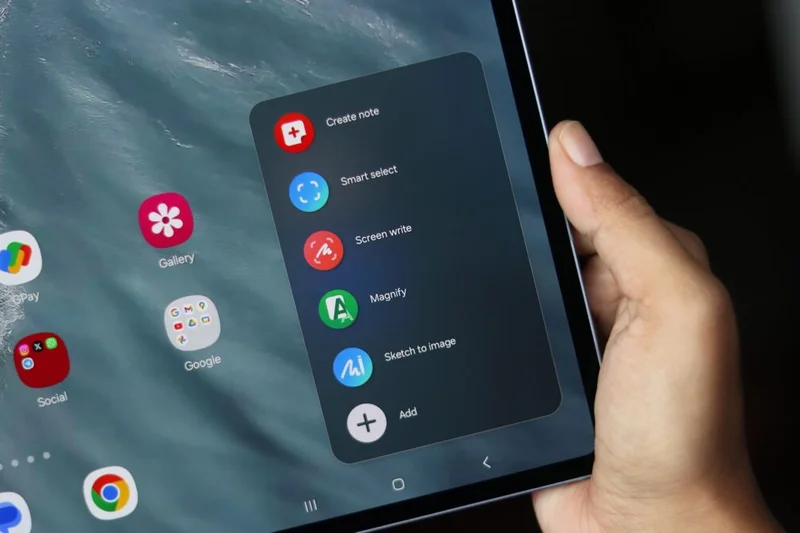
Why we picked it: The Samsung Galaxy Tab S11 Ultra is an absolute behemoth in the Android tablet space, featuring a massive 14.6-inch Dynamic AMOLED 2X display that gives artists a truly expansive portable canvas. Unlike Apple, Samsung generously includes their excellent S Pen in the box. Powered by the Snapdragon 8 Gen 4, it crushes demanding workloads in Clip Studio Paint and Krita. The ultra-low latency stylus and gorgeous anti-reflection OLED panel make it a premium choice for illustrators.
Key Specs
- 14.6-inch Dynamic AMOLED 2X display
- Included S Pen with ultra-low latency
- IP68 water and dust resistant
- Snapdragon 8 Gen 4 processor
- Anti-reflection screen coating
- Runs robust Android art apps like Clip Studio Paint
What we like
- Massive, beautiful 14.6-inch OLED screen
- Highly responsive S Pen is included in the box
- Incredible processing power from Snapdragon 8 Gen 4
- IP68 rating offers peace of mind for travel
What we don't like
- Its massive size makes it slightly unwieldy to hold in one hand
- Android's creative app ecosystem, while improving, still lacks Procreate
Best for: Android loyalists and professionals who want the largest possible standalone screen for complex illustration software.
Considering the Galaxy Tab S11 Ultra vs the iPad Pro 13-inch? The Samsung offers a noticeably larger 14.6-inch screen and includes the stylus, while the iPad boasts an overall smoother OS ecosystem with exclusive apps like Procreate.
The ultimate Android canvas, combining a breathtaking 14.6-inch OLED display with top-tier S Pen performance.
Buy at Samsung official site#6 Wacom Cintiq Pro 17
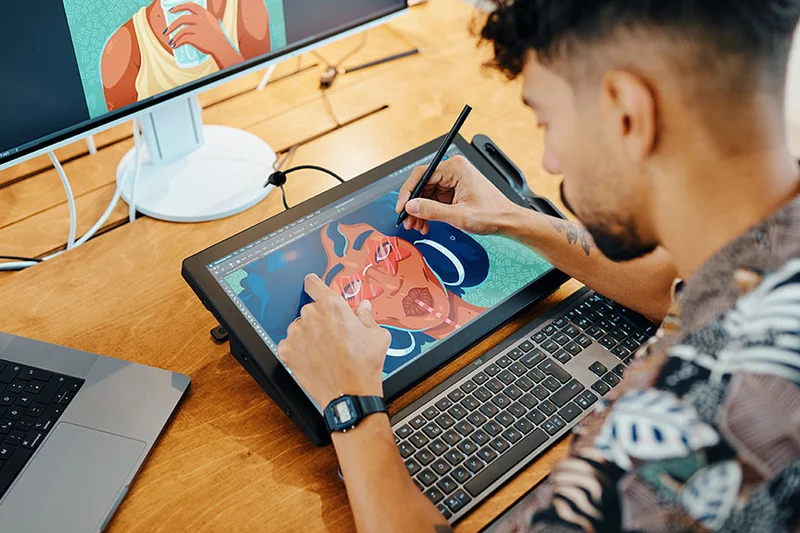
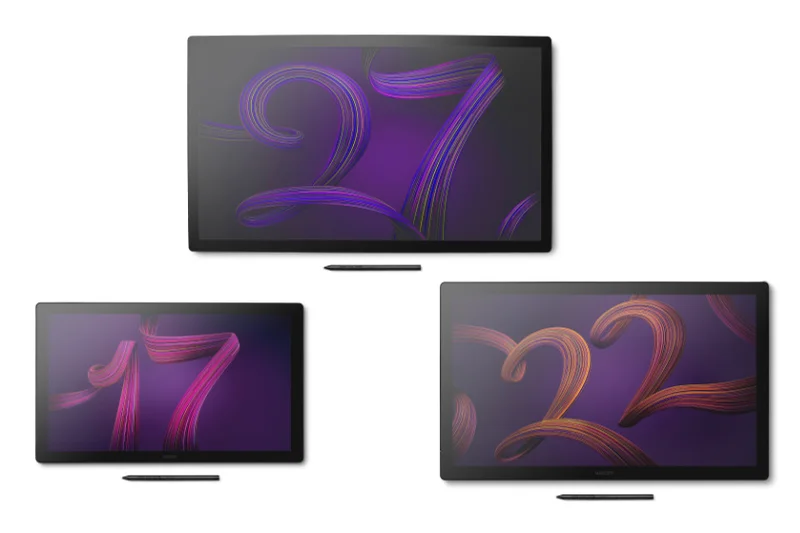
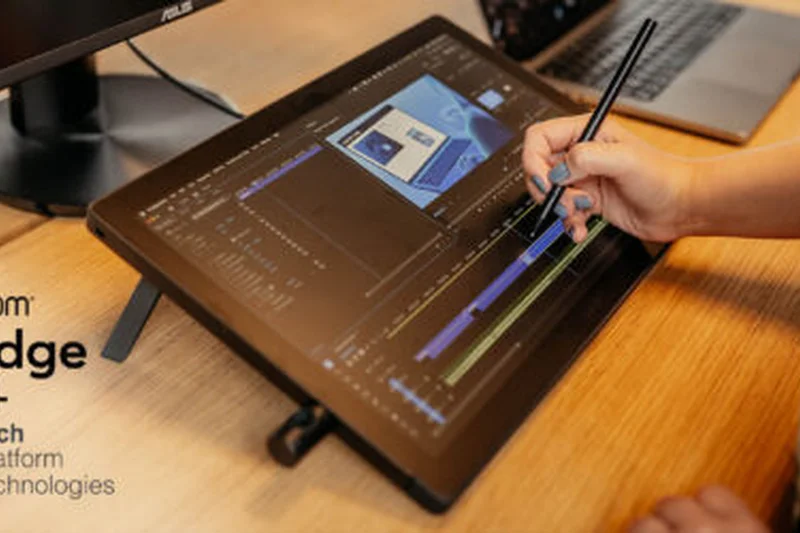
Why we picked it: The Wacom Cintiq Pro 17 hits the ultimate sweet spot for professional artists who want premium 4K resolution and 120Hz refresh rates without surrendering their entire desk to a monitor. It boasts phenomenal color accuracy (99% DCI-P3) and Pantone Validation, ensuring your prints look exactly as they do on screen. The included Wacom Pro Pen 3 is customizable for weight and balance, offering the industry's most reliable and natural stroke rendering.
Key Specs
- 17.3-inch 4K (3840x2160) 120Hz display
- 99% DCI-P3 and 88% Adobe RGB color coverage
- Wacom Pro Pen 3 included
- Advanced multi-touch gesturing
- Pantone Validated certification
What we like
- Ideal 17-inch size for focused desktop workspaces
- 120Hz 4K screen eliminates perceived lag
- Incredible color gamut accuracy out of the box
- Highly customizable Pro Pen 3
What we don't like
- Very expensive compared to alternatives of the same size
- The ergonomic stand is usually sold separately
Best for: Professional studio artists and photographers who require absolute color fidelity and high refresh rates in a medium footprint.
Considering the Cintiq Pro 17 vs the Huion Kamvas Pro 19? The Wacom offers a higher 120Hz refresh rate and industry-standard driver reliability, while the Huion provides a slightly larger screen for less than half the price.
A masterpiece of a pen display that delivers uncompromised 120Hz 4K performance for serious creative professionals.
Buy at Wacom official site#7 Apple iPad (11th Gen)
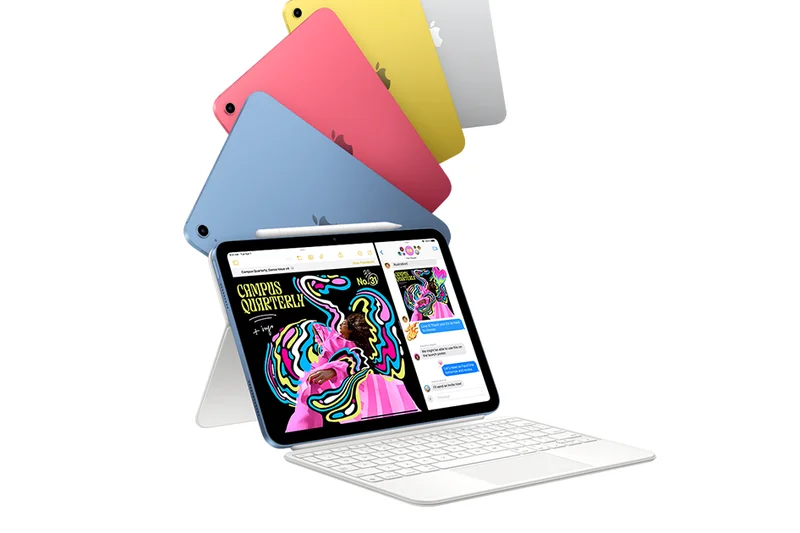
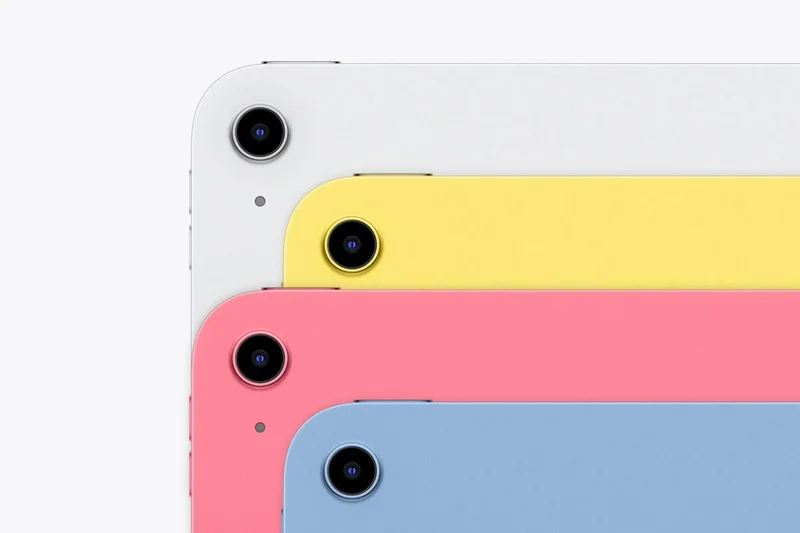
Why we picked it: The standard 11th Gen iPad remains the undisputed champion of value for anyone looking to enter the world of digital art. For just $349, you get access to the robust iPadOS ecosystem, including Procreate, which is practically an industry standard for illustrators. While it lacks the laminated display and high refresh rates of the Air and Pro models, the A16 Bionic chip ensures snappy performance, and compatibility with the Apple Pencil (USB-C) allows for excellent pressure-sensitive drawing.
Key Specs
- 10.9-inch Liquid Retina display
- A16 Bionic chip
- Supports Apple Pencil (USB-C) and 1st Gen
- iPadOS 18 features
- Excellent budget option for Procreate beginners
What we like
- Unbeatable entry-level price for a standalone tablet
- Full access to Procreate and desktop-class apps
- A16 chip provides plenty of longevity and speed
- Great battery life
What we don't like
- Non-laminated screen creates a noticeable gap between pen tip and cursor
- Apple Pencil is not included
Best for: Beginners, students, and hobbyists looking for the most affordable way to start drawing on a screen with Procreate.
Considering the base iPad vs a budget pen display like the Huion Kamvas 13? The iPad is completely standalone and portable, whereas the Kamvas 13 requires a PC but features a superior laminated drawing surface.
The best budget-friendly gateway into professional digital art software and standalone tablet mobility.
Buy at Apple official site#8 Xencelabs Pen Display 16
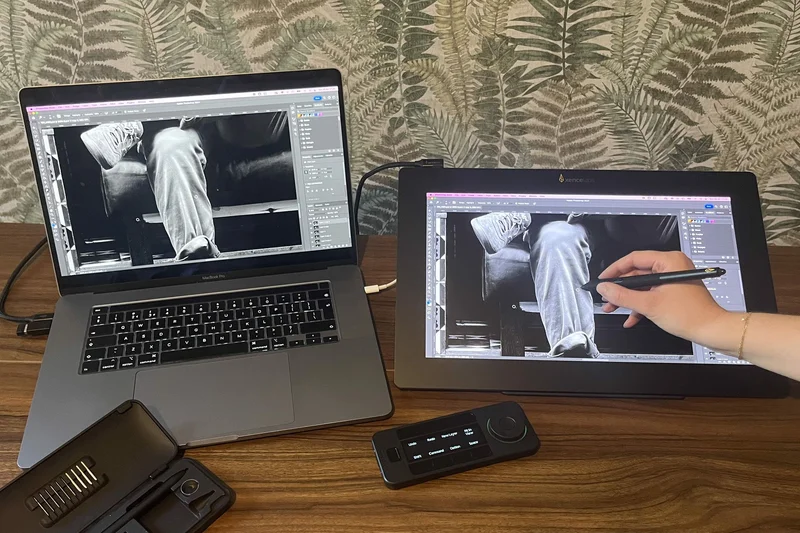
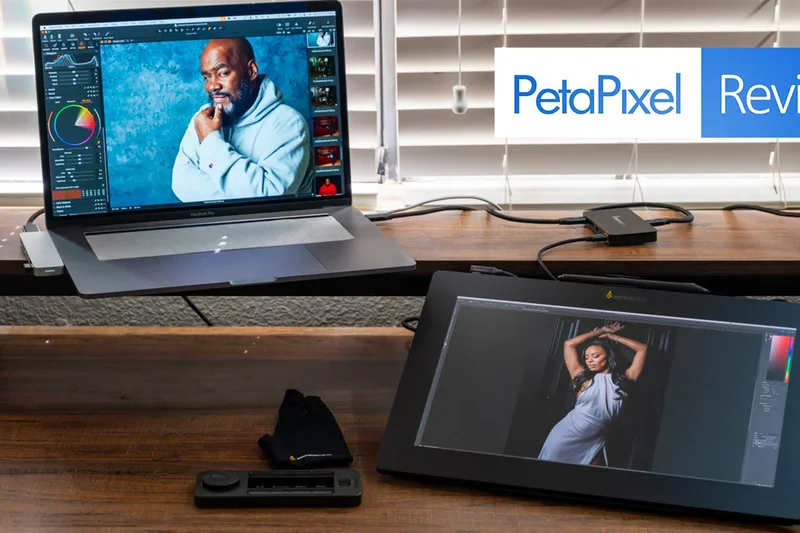
Why we picked it: Xencelabs continues to disrupt the high-end market with the Pen Display 16. It features a dazzling 4K OLED panel in a slim 12mm aluminum housing. It ships with a comprehensive bundle, including two custom-calibrated pens (a thin and a 3-button version) and an OLED Quick Keys remote, making it arguably a better value out-of-the-box than its Wacom equivalents. The etched glass provides a sublime drawing friction that prevents hand fatigue.
Key Specs
- 15.6-inch 4K OLED display
- Incredible 100,000:1 contrast ratio
- 99% Adobe RGB and 98% DCI-P3 color profiles
- Includes two custom-calibrated pens
- OLED display Quick Keys remote included
- Ultra-thin 12mm aluminum housing
What we like
- Mesmerizing 4K OLED display with infinite contrast
- Generous accessory bundle including a wireless hotkey remote
- Two different pen sizes included to suit your grip
- Premium, durable aluminum build
What we don't like
- High contrast OLED can sometimes crush shadow details slightly
- Screen size may feel a bit cramped at full 4K resolution
Best for: Professionals demanding top-tier build quality, deep OLED blacks, and a comprehensive accessory package straight out of the box.
Considering the Xencelabs Pen Display 16 vs the Wacom Cintiq 16? The Xencelabs is vastly superior with a 4K OLED screen and included remote, while the Cintiq 16 is much cheaper but utilizes a basic 1080p LCD.
A phenomenal, premium 16-inch OLED pen display that aggressively challenges industry giants with its features and bundled value.
Buy at Xencelabs official site#9 Wacom Cintiq Pro 27
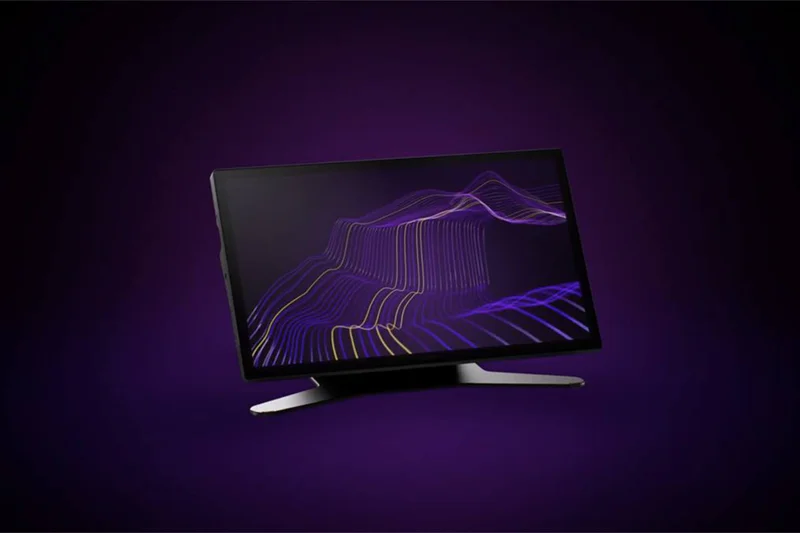
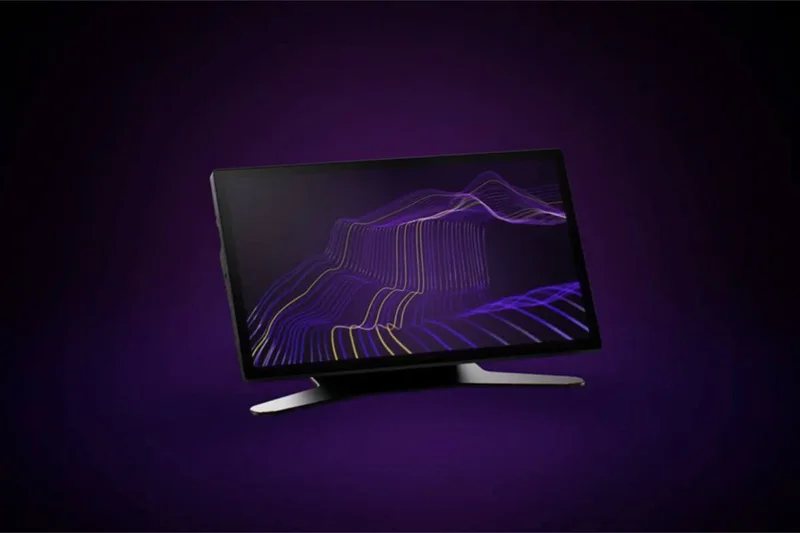
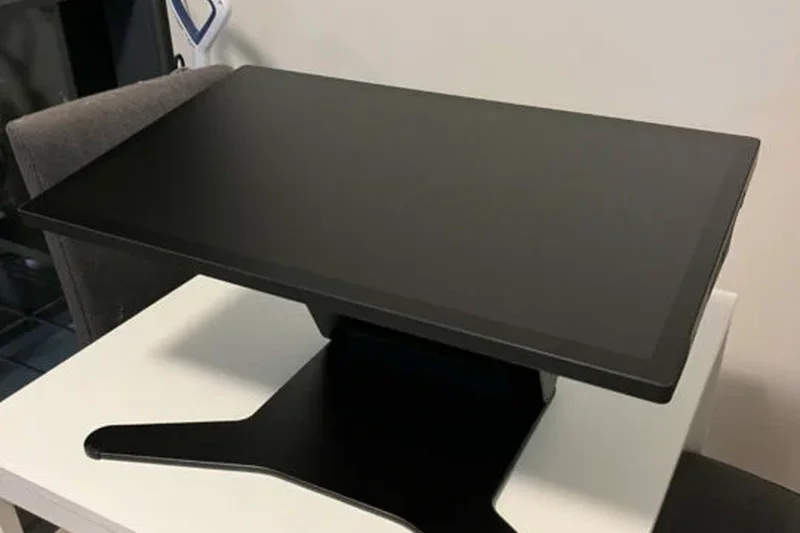
Why we picked it: The Wacom Cintiq Pro 27 is the zenith of studio pen displays. It dominated our Stylus, Display, and Reliability dimension tests. The 26.9-inch 4K screen with a 120Hz refresh rate makes digital strokes feel like they are flowing directly from the physical nib. Designed for high-end animation, VFX, and illustration studios, its 10-bit color depth and highly customizable Pro Pen 3 leave literally nothing to be desired. If budget is no object and you need the best, this is it.
Key Specs
- 26.9-inch 4K (3840x2160) display
- 120Hz refresh rate and 10-bit color depth
- 99% Adobe RGB & 98% DCI-P3 color gamut
- Wacom Pro Pen 3 with 8,192 pressure levels
- 10-finger multi-touch support
- Pantone Validated and Pantone SkinTone Validated
What we like
- Flawless 120Hz 4K drawing experience
- Incredible color gamut tailored for professional print/video
- Near-zero parallax and excellent screen texture
- Touch gestures are smooth and responsive
What we don't like
- Prohibitively expensive for many artists
- The heavy-duty ergonomic stand is sold separately
Best for: Working industry professionals, top-tier studios, and animators who require an uncompromised, massive digital workspace.
Considering the Wacom Cintiq Pro 27 vs the Huion Kamvas Pro 27? The Wacom offers an overall tighter driver ecosystem and marginally better pen IAF, but the Huion delivers 95% of the performance for nearly half the price.
The absolute pinnacle of desktop drawing displays, offering a peerless 120Hz 4K canvas for the most demanding creatives.
Buy at Wacom official site#10 Wacom Cintiq 16 (2025)
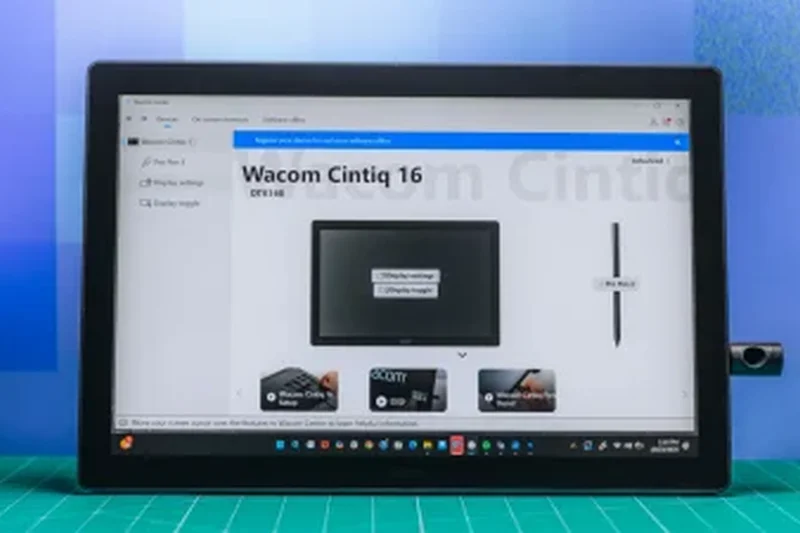
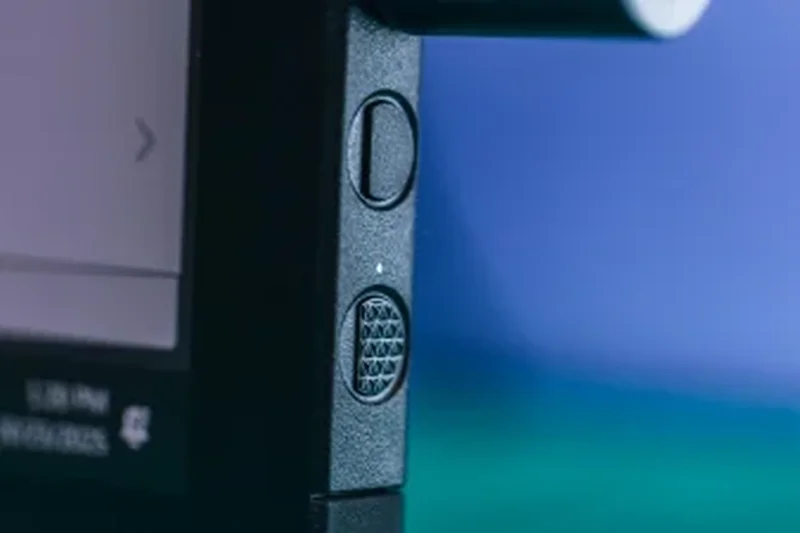
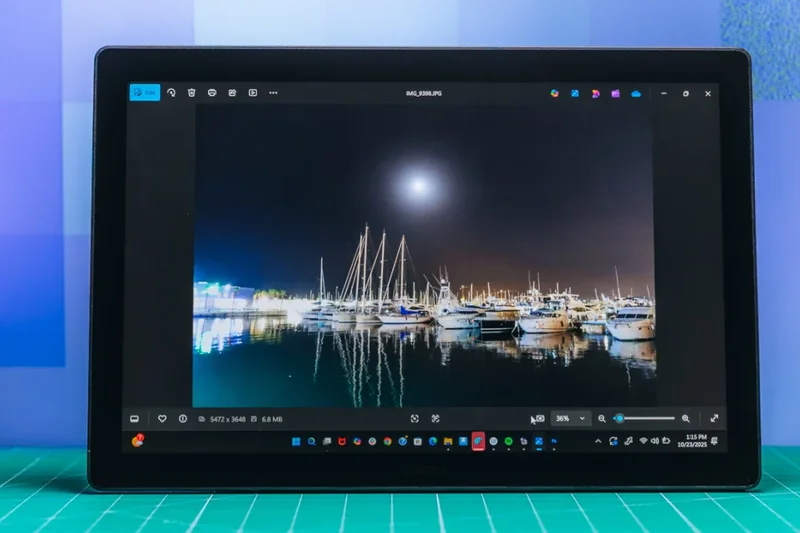
Why we picked it: The refreshed Wacom Cintiq 16 (2025) upgrades a classic workhorse, bringing a sharp 2.5K WQXGA display to the mid-range lineup. Upgrading from the older 1080p model, it now features 100% sRGB color and Wacom's new Pro Pen 3 technology. It provides the legendary Wacom durability and drawing feel at a highly accessible price point for enthusiasts and design students, complete with built-in foldable legs for instant desk deployment.
Key Specs
- 16-inch 2.5K WQXGA (2560x1600) display
- Wacom Pro Pen 3 with 8,192 pressure levels
- 100% sRGB color gamut
- Anti-glare etched glass for natural friction
- Foldable built-in legs
What we like
- Excellent 2.5K resolution bump from previous generations
- Utilizes Wacom's premium Pro Pen 3
- Etched glass provides a satisfying, paper-like bite
- Very approachable price for a Wacom display
What we don't like
- Color gamut isn't wide enough for high-end HDR print workflows
- Lacks physical shortcut buttons on the bezel
Best for: Art students and advanced hobbyists seeking Wacom's famous reliability and pen tech without the premium 'Pro' price tag.
Considering the Cintiq 16 vs the XP-Pen Artist Pro 16 (Gen 2)? The XP-Pen offers higher pressure levels and includes a shortcut remote, but the Cintiq 16 holds an edge in driver stability and long-term durability.
A superb mid-range pen display that significantly improves upon its predecessor with a sharp 2.5K screen and updated pen.
Buy at Wacom official site#11 Microsoft Surface Pro 11th Edition
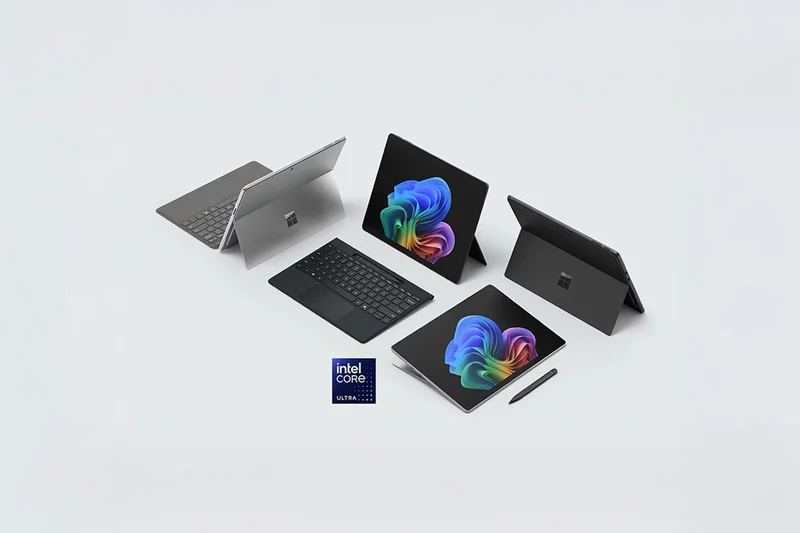
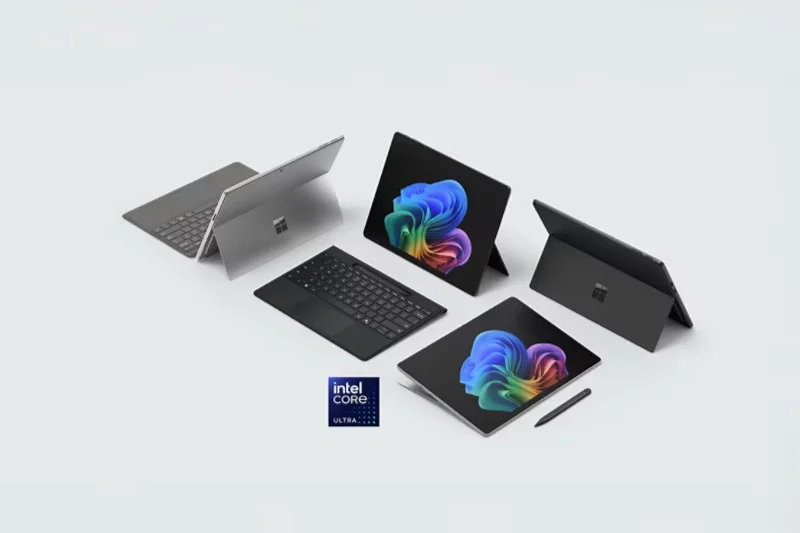

Why we picked it: The Surface Pro 11th Edition successfully bridges the gap between a high-end Windows laptop and a dedicated drawing tablet. Utilizing the Snapdragon X processor and a lush 120Hz display, it runs full Windows desktop applications natively. The Surface Slim Pen features unique haptic feedback that simulates the feeling of friction on paper, making it an excellent all-in-one device for creators who need full desktop OS features.
Key Specs
- 13-inch PixelSense Flow 120Hz display
- Snapdragon X Plus/Elite processor
- Supports Surface Slim Pen with tactile haptic feedback
- Windows 11 Copilot+ PC
- Integrated kickstand for perfect drawing angles
What we like
- Runs full desktop creative software (Photoshop, ZBrush)
- Haptic feedback in the pen is remarkably immersive
- Built-in kickstand is perfect for drawing
- 120Hz screen is buttery smooth
What we don't like
- Pen and keyboard cover must be purchased separately
- Initial Activation Force on the pen isn't quite as light as an iPad or Wacom
Best for: Artists who require a full Windows operating system on the go for robust desktop software.
Considering the Surface Pro vs the iPad Pro? The Surface runs full desktop Windows apps natively, while the iPad relies on mobile-optimized apps but offers superior raw stylus performance.
A premium 2-in-1 hybrid that offers the versatility of a Windows PC with an excellent, haptic-enabled drawing experience.
Buy at Microsoft official site#12 Wacom Cintiq 24 Touch
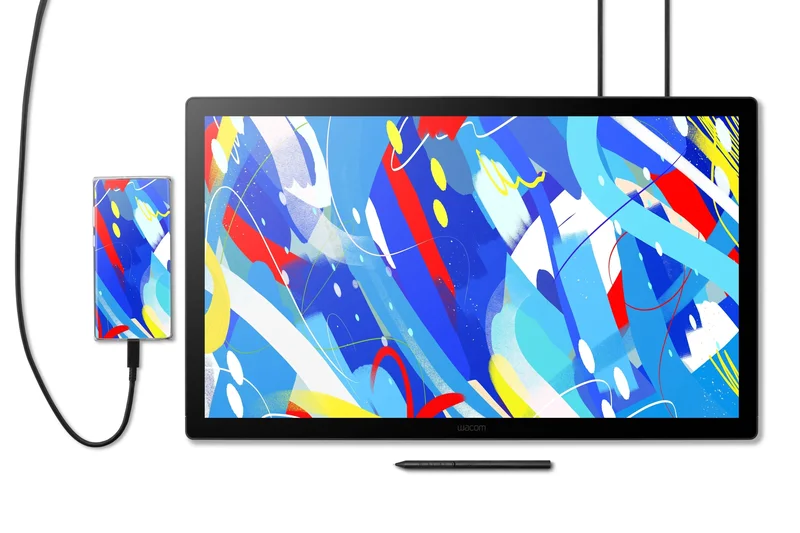
Why we picked it: The Wacom Cintiq 24 Touch is a fantastic studio monitor that balances size and resolution. Featuring a 2.5K IPS display, it offers plenty of workspace while remaining slimmer and less expensive than the 'Pro' series. The 10-finger multi-touch allows you to pan and zoom fluidly, and the Pro Pen 3 ensures accurate strokes.
Key Specs
- 23.8-inch 2.5K WQHD (2560x1440) IPS display
- 10-finger multitouch support
- 100% sRGB color gamut
- Wacom Pro Pen 3 with 8,192 pressure levels
- Slimmer 0.8-inch thick redesign
- Includes fully adjustable ergonomic stand
What we like
- Large workspace without overwhelming desk space
- Included ergonomic stand is a massive value-add
- Excellent multi-touch integration
- Uses top-tier Pro Pen 3
What we don't like
- 2.5K resolution on a 24-inch screen isn't as crisp as 4K
- Color gamut is only 100% sRGB, lacking Adobe RGB depth
Best for: Studio artists who want a large Wacom display with touch capabilities but don't need 4K resolution.
Considering the Cintiq 24 Touch vs the XP-Pen Artist Pro 24 4K? The XP-Pen gives you a sharper 4K screen for less money, but Wacom's multi-touch integration and pen feel remain superior.
A reliable, large-format workstation display that delivers essential Wacom performance and touch features.
Buy at Wacom official site#13 Samsung Galaxy Tab S9 FE
Why we picked it: The Galaxy Tab S9 FE is a phenomenal mid-range option for those who want to dive into Android drawing apps without spending flagship money. It includes Samsung's beloved S Pen, features an IP68 water resistance rating, and its 10.9-inch 90Hz screen is bright and responsive. The inclusion of expandable MicroSD storage is a huge boon for artists saving massive high-res canvas files.
Key Specs
- 10.9-inch LCD display with 90Hz refresh rate
- Exynos 1380 processor
- IP68 water-resistant S Pen included
- MicroSD slot for expandable art storage
- Up to 18 hours of battery life
What we like
- S Pen included in the box saves money
- Expandable storage via MicroSD
- Water and dust resistant
- 90Hz screen offers smoother drawing than standard 60Hz
What we don't like
- Exynos processor can lag under extremely heavy multi-layer files
- LCD screen doesn't match the vibrancy of OLED
Best for: Students and hobbyists wanting a capable standalone tablet with an included stylus on a reasonable budget.
Considering the Tab S9 FE vs the base iPad? The Samsung includes the pen and has a better laminated 90Hz screen, but the iPad has a stronger processor and access to Procreate.
A highly capable, value-packed Android tablet that provides a great out-of-the-box digital art experience.
Buy at Samsung official site#14 Xencelabs Pen Display 24+
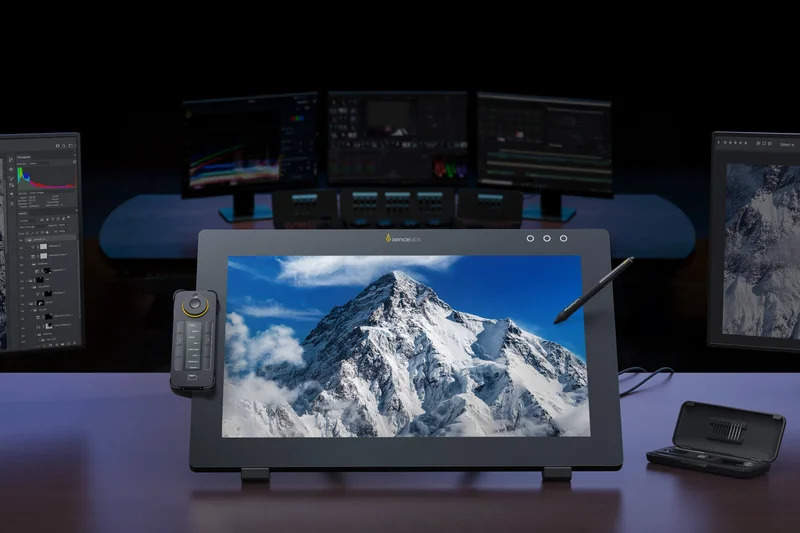
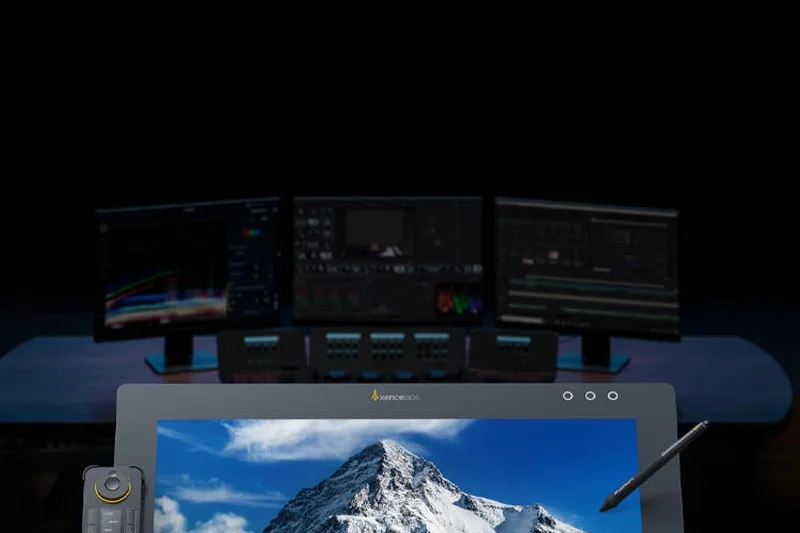
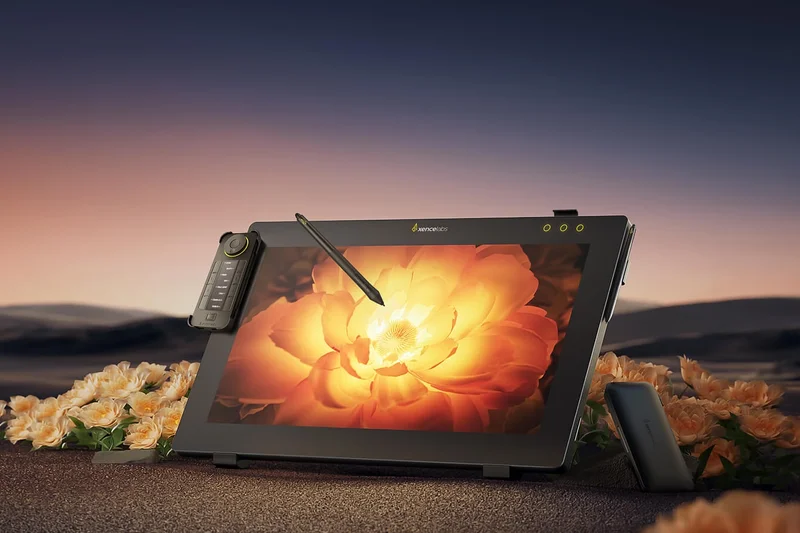
Why we picked it: The Xencelabs Pen Display 24+ is a formidable challenger to Wacom's studio dominance. It boasts a stunning 4K Calman Ready display with 99% Adobe RGB coverage, perfect for high-end color grading and illustration. It ships with two different pens and an extensive wireless Quick Keys remote featuring 44 customizable macros, making it an incredible all-in-one studio package.
Key Specs
- 23.8-inch 4K (3840x2160) Calman Ready display
- 99% Adobe RGB and 93% DCI-P3 color coverage
- Includes two battery-free v2 pens (3-Button and Thin)
- Super AG Etching technology reduces glare
- 44 customizable Quick Keys on included remote
- Supports HP Anyware remote workflows
What we like
- Exceptional 4K display with reference-grade color
- Superb etched glass minimizes glare and provides great bite
- Massive value with included pens, stand, and remote
- Silent fanless operation
What we don't like
- Takes up a significant amount of desk depth
- Lacks multi-touch finger capabilities
Best for: Professional illustrators and photo editors seeking top-tier 4K performance with a comprehensive accessory bundle.
Considering Xencelabs 24+ vs Wacom Cintiq Pro 27? The Wacom offers 120Hz and touch, while Xencelabs is significantly more affordable and includes crucial accessories like the stand and remote.
A beautifully engineered 24-inch 4K display that offers incredible value and performance for serious studio setups.
Buy at Xencelabs official site#15 Huion Kamvas Pro 19
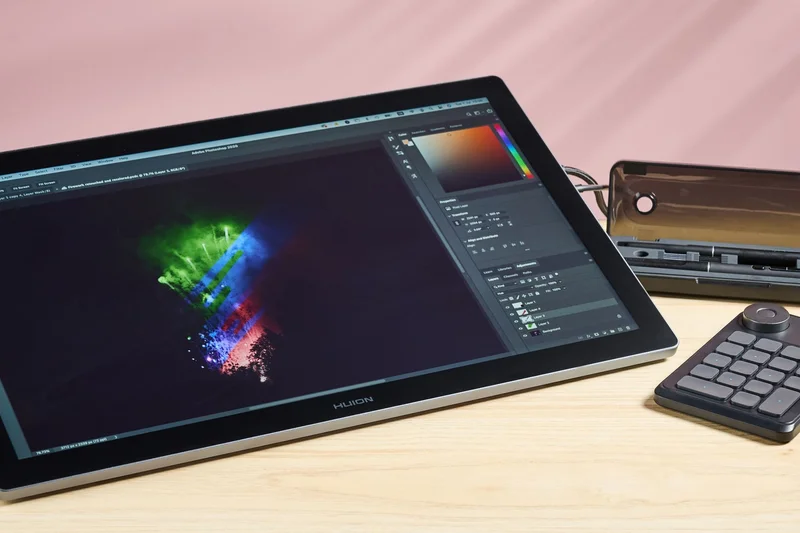
Why we picked it: The Huion Kamvas Pro 19 introduces a fantastic form factor—an 18.4-inch 4K display that feels expansive yet fits on most desks. It features 10-point multi-touch and Huion's latest PenTech 4.0, which boasts 16,384 pressure levels for incredibly nuanced strokes. The laminated screen and minimalist built-in kickstand make it a joy to use.
Key Specs
- 18.4-inch 4K UHD (3840x2160) display
- 10-point multi-touch functionality
- PenTech 4.0 with dual pens included in box
- 99% sRGB and 96% Adobe RGB
- Built-in minimalist kickstand
What we like
- Perfect "Goldilocks" 18.4-inch size
- Crisp 4K resolution provides massive working real estate
- PenTech 4.0 is highly responsive with great IAF
- Multi-touch support is a rare bonus at this price
What we don't like
- Built-in kickstand only offers a single viewing angle
- Touch features occasionally conflict with palm rejection on Windows
Best for: Artists who want 4K resolution and touch features but find 24-inch monitors too large for their workspace.
Considering the Kamvas Pro 19 vs Cintiq Pro 17? The Huion offers a larger screen and 4K touch for much less money, though Wacom's driver stability and 120Hz refresh edge it out in pure performance.
A brilliant mid-to-large pen display that hits an ideal balance of screen size, 4K clarity, and price.
Buy at Huion official site#16 Microsoft Surface Laptop Studio 2
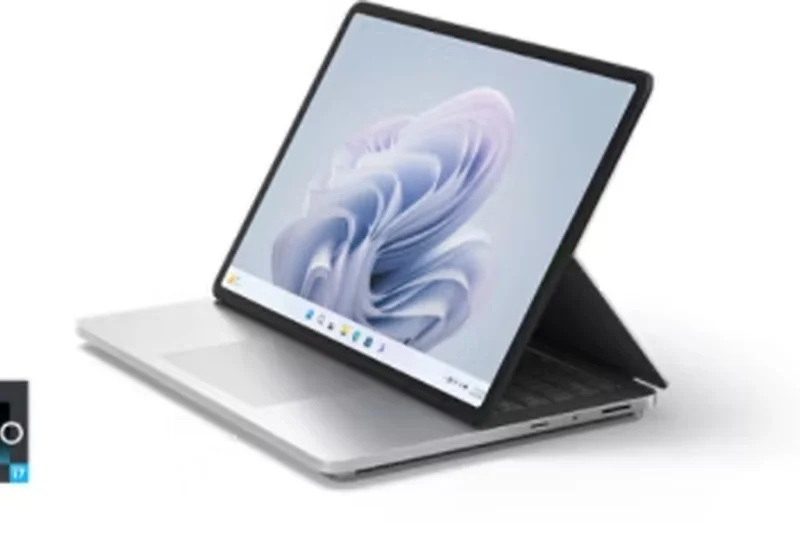
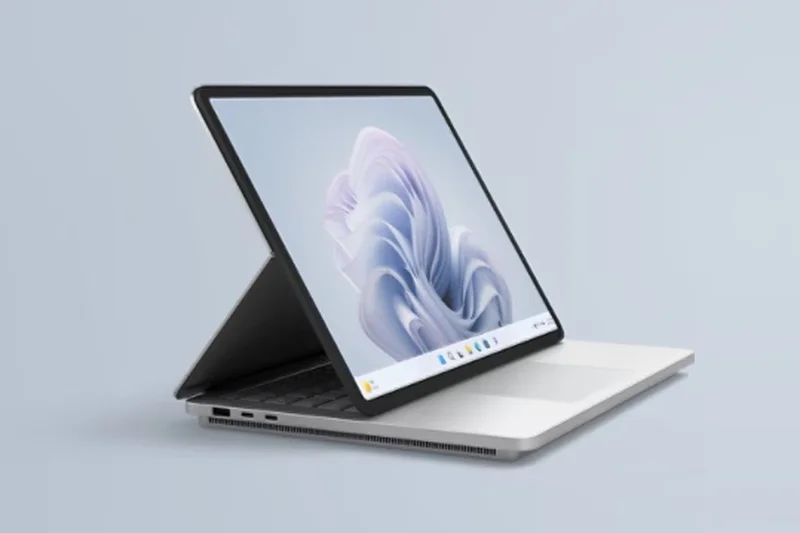
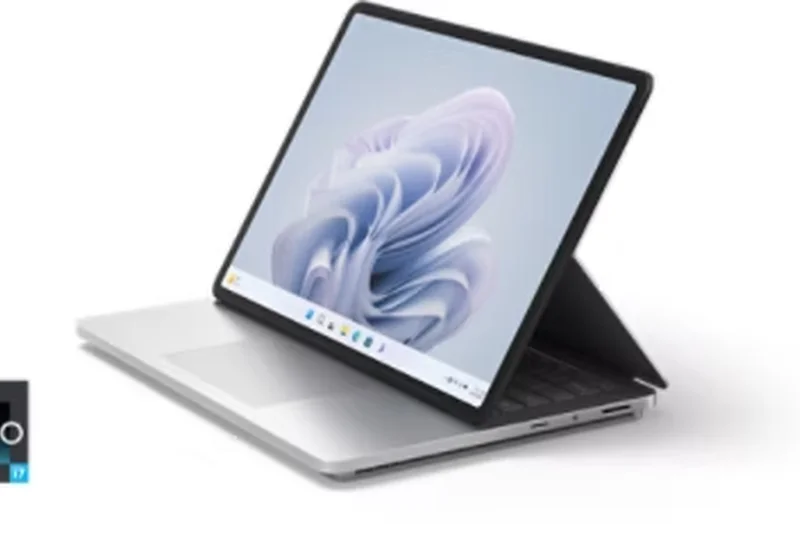
Why we picked it: The Surface Laptop Studio 2 is an incredibly versatile machine, acting as a high-end laptop that effortlessly pulls forward into a drawing easel. With a dedicated NVIDIA RTX GPU, it is a powerhouse for 3D modeling and heavy video editing, alongside 2D illustration using the tactile Surface Slim Pen 2.
Key Specs
- 14.4-inch PixelSense Flow 120Hz touchscreen
- Intel Core i7 13th Gen processor
- NVIDIA RTX 4050/4060 GPU options
- Pull-forward display converts into a drawing easel
- Compatible with Surface Slim Pen 2
What we like
- Unique, highly functional pull-forward screen design
- Dedicated GPU handles 3D and heavy rendering easily
- 120Hz screen is gorgeous and smooth
- Haptic pen feedback
What we don't like
- Very heavy for a portable device
- Extremely expensive compared to standard tablets
Best for: Creative professionals who need a single device that serves as both a heavy-duty laptop and a drawing tablet.
Considering the Surface Laptop Studio 2 vs an iPad Pro? The Surface provides true desktop OS capabilities and a dedicated GPU for 3D, while the iPad is vastly superior for pure 2D drawing and mobility.
A remarkable engineering feat that gives creators a powerful all-in-one laptop and drawing studio.
Buy at Microsoft official site#17 Huion Kamvas Pro 27
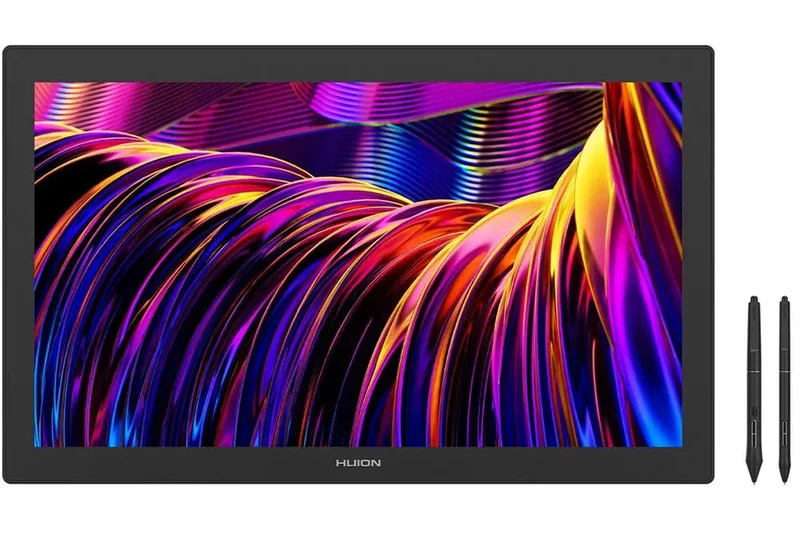
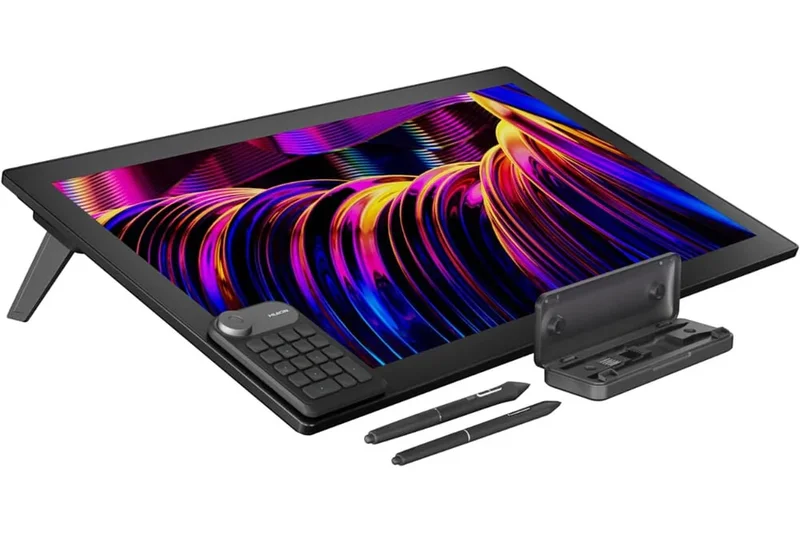
Why we picked it: Huion's Kamvas Pro 27 is a premium 4K studio display that directly targets high-end Wacoms. Featuring a massive 27-inch canvas with a 144Hz high refresh rate, it virtually eliminates input latency. The Canvas Glass 3.0 etching provides a beautiful tactile feel, and the 3D LUT hardware calibration ensures colors are pristine.
Key Specs
- 27-inch 4K UHD (3840x2160) canvas
- 144Hz high refresh rate for minimal latency
- Includes two PenTech 4.0 styluses (Slim and Standard)
- 99% sRGB, 98% Adobe RGB, and 97% DCI-P3
- Canvas Glass 3.0 nano-etched anti-glare screen
- 3D LUT hardware color calibration
What we like
- Incredible 144Hz refresh rate makes drawing butter-smooth
- Massive 27-inch 4K workspace
- Excellent hardware color calibration
- Significantly cheaper than flagship Wacom models
What we don't like
- Lacks multi-touch capabilities
- Requires a sturdy desk and heavy VESA arm/stand
Best for: Professional illustrators and animators who want a massive, high-refresh 4K canvas without paying Wacom's premium.
Considering Kamvas Pro 27 vs Cintiq Pro 27? Huion offers a faster 144Hz screen for less money, but Wacom includes touch features and an industry-leading digitizer reputation.
A stunning, massive 4K display that delivers ultra-smooth 144Hz performance at a competitive professional price.
Buy at Huion official site#18 Huion Kamvas Pad 12
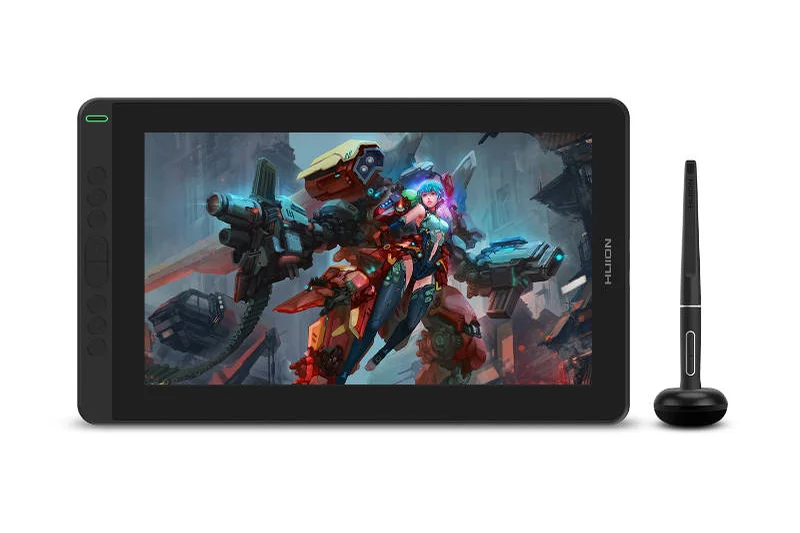
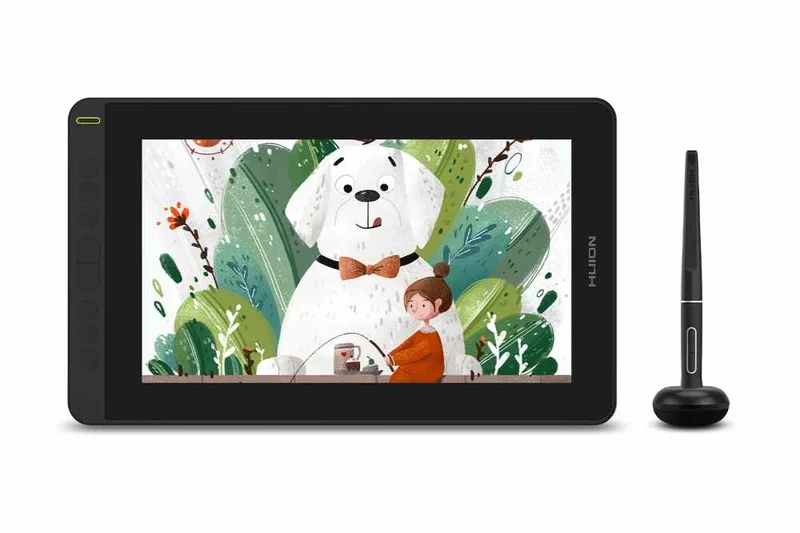
Why we picked it: The Huion Kamvas Pad 12 is a dedicated standalone Android tablet designed specifically from the ground up for artists. It features a 12.2-inch 2K+ display with a nano-matte screen that mimics the drag of paper perfectly. Pre-loaded with creative apps and utilizing the PenTech 4.0 stylus, it's a mobile studio ready to go immediately.
Key Specs
- 12.2-inch 2K+ display with 3:2 aspect ratio
- 90Hz refresh rate
- PenTech 4.0 stylus with 16,384 pressure levels
- Nano-matte screen for paper-like feel
- Pre-loaded with Android creative apps
What we like
- True standalone portability without needing a PC
- Nano-matte screen feels fantastic to draw on
- 90Hz refresh rate reduces visual latency
- Great 3:2 aspect ratio for drawing
What we don't like
- Android OS app ecosystem is still secondary to iPadOS
- Hardware is strictly mid-range
Best for: Mobile artists wanting an affordable, standalone drawing experience with a surface built specifically for styluses.
Considering Kamvas Pad 12 vs Galaxy Tab S9 FE? The Kamvas Pad has a much better paper-like screen texture for drawing, while the Galaxy Tab has a more polished general tablet OS experience.
A highly portable standalone Android tablet purpose-built for digital artists craving a paper-like feel on the go.
Buy at Huion official site#19 XP-Pen Magic Drawing Pad
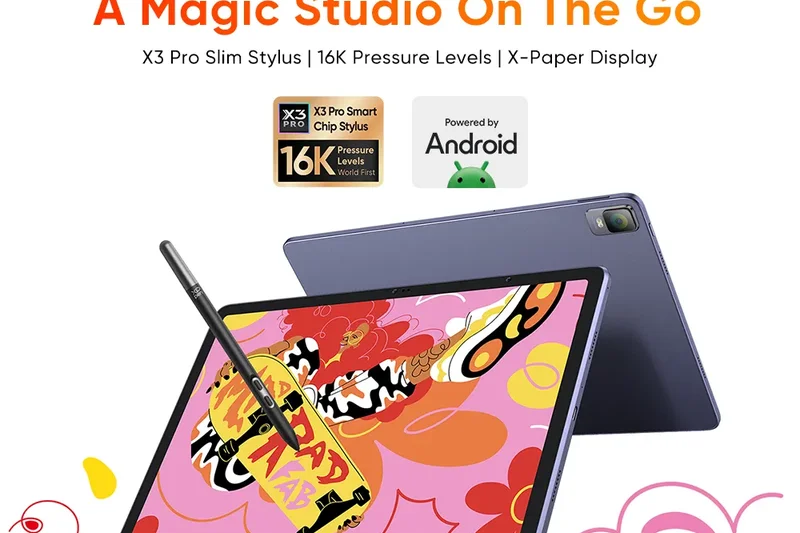
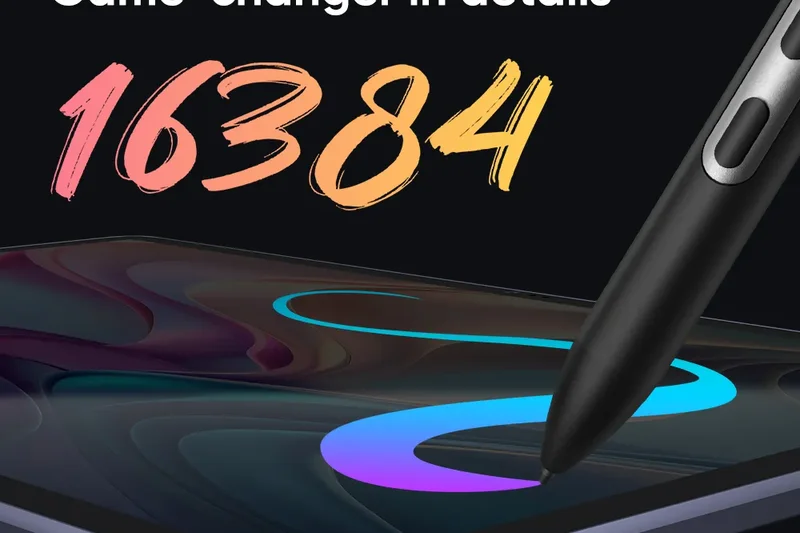
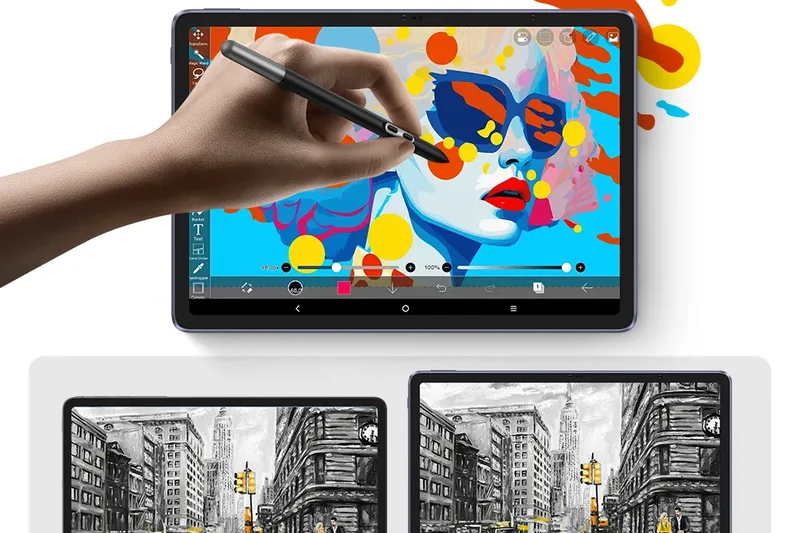
Why we picked it: XP-Pen's entry into the standalone market is an impressive Android tablet that utilizes an "X-Paper" display, offering a matte, textured surface that significantly reduces glare and adds welcome friction. The X3 Pro Pencil provides a massive 16,384 levels of pressure sensitivity, making it incredibly responsive for mobile sketching.
Key Specs
- 12.2-inch 2K (2160x1440) X-Paper Display
- Android OS with pre-installed drawing software
- X3 Pro Pencil with 16,384 pressure levels
- 8GB RAM and 256GB storage
- 8000mAh battery for all-day sketching
What we like
- X-Paper display feels great and rejects harsh lighting
- High 256GB base storage capacity
- Excellent battery life for long outdoor sessions
- X3 Pro Pencil is highly sensitive
What we don't like
- Limited by Android's creative app selection
- Noticeable bezel thickness
Best for: Illustrators looking for a dedicated digital sketchbook with a textured screen and high storage capacity.
Considering the Magic Drawing Pad vs an iPad Air? The iPad is significantly more powerful with access to Procreate, while XP-Pen offers a better out-of-the-box screen texture and included pen.
A dedicated portable sketching device that nails the screen texture and battery life needed for long drawing sessions.
Buy at XP-Pen official site#20 Lenovo Tab Extreme
Why we picked it: The Lenovo Tab Extreme lives up to its name by offering an enormous 14.5-inch 3K OLED display running at 120Hz. With the included Precision Pen 3, it offers a remarkably fluid and vibrant drawing experience. The dual USB-C ports make it easy to connect accessories or external monitors while charging its massive battery.
Key Specs
- 14.5-inch 3K OLED display with 120Hz refresh rate
- MediaTek Dimensity 9000U processor
- Lenovo Precision Pen 3 included
- Dual USB-C ports for extended connectivity
- Massive 12300mAh battery
What we like
- Gorgeous, massive 14.5-inch OLED screen
- 120Hz refresh rate for instant stroke feedback
- Incredible battery life
- Includes a highly functional floating stand keyboard
What we don't like
- Very expensive for an Android tablet
- Pen IAF is slightly higher than Samsung's S Pen
Best for: Media consumers and artists who want a gigantic, vibrant OLED screen for Android-based creative work.
Considering Tab Extreme vs Galaxy Tab S11 Ultra? Both are giant Android slates, but Samsung's S Pen technology and drawing ecosystem integration remain slightly more refined.
A premium, massive Android tablet that excels in both media consumption and expansive digital canvas tasks.
Buy at Lenovo official site#21 XP-Pen Artist Pro 16 (Gen 2)
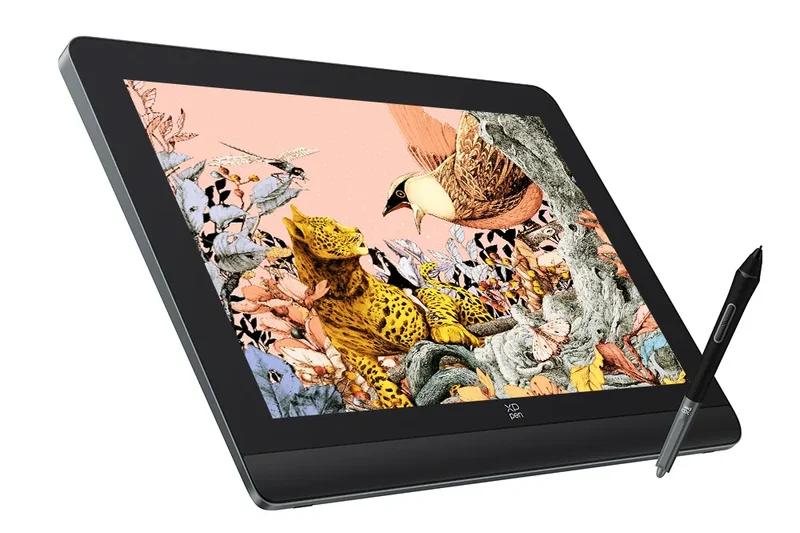
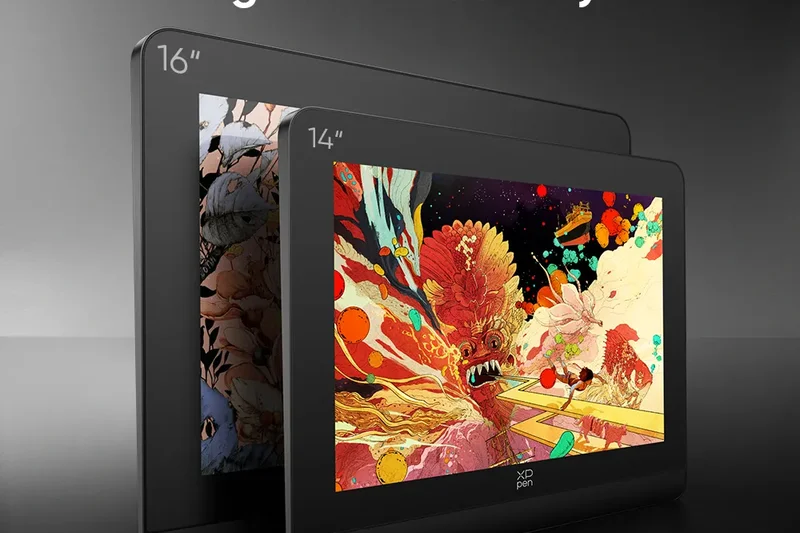
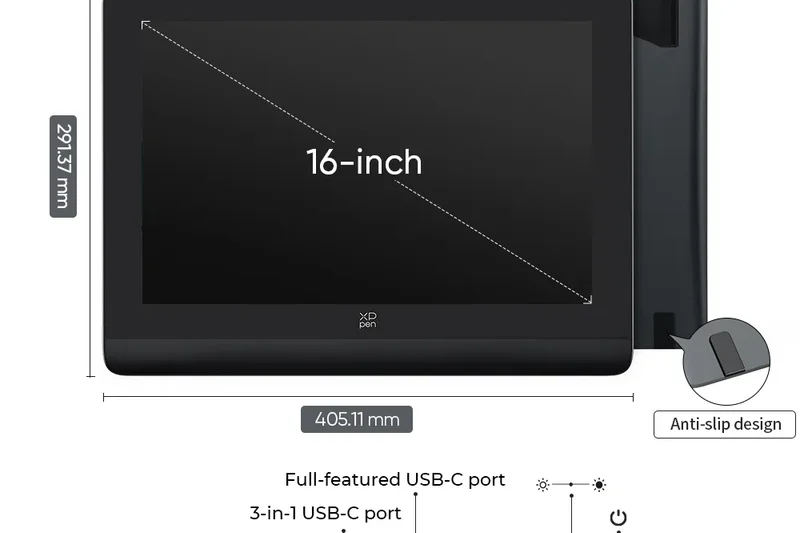
Why we picked it: The XP-Pen Artist Pro 16 (Gen 2) is a superbly capable 2.5K pen display that punches above its weight class. Featuring the X3 Pro Smart Chip Stylus with 16,384 pressure levels, it provides excellent line fidelity. The 16-inch size is perfect for home desks, and the inclusion of a wireless shortcut remote makes optimizing your workflow incredibly easy.
Key Specs
- 16-inch 2.5K (2560x1600) display
- X3 Pro Smart Chip Stylus with 16,384 pressure levels
- 99% sRGB and 99% Adobe RGB
- Built-in foldable ergonomic stand
- Included wireless shortcut remote
What we like
- Sharp 2.5K resolution on a 16-inch screen
- Included wireless hotkey remote is a huge productivity booster
- Pen is very responsive with a light initial activation force
- Ergonomic built-in wrist rest
What we don't like
- Screen brightness tops out around 250 nits
- Cables can be slightly bulky if your PC lacks a full-featured USB-C
Best for: Hobbyists and freelance artists seeking a high-res, feature-rich 16-inch display without breaking the bank.
Considering Artist Pro 16 vs Huion Kamvas Pro 16 (4K)? The XP-Pen offers a built-in stand and a remote with a 2.5K screen, while Huion pushes a sharper 4K resolution.
A highly productive and ergonomic 16-inch display that offers incredible value with its included wireless remote.
Buy at XP-Pen official site#22 Huion Kamvas Pro 16 (4K)
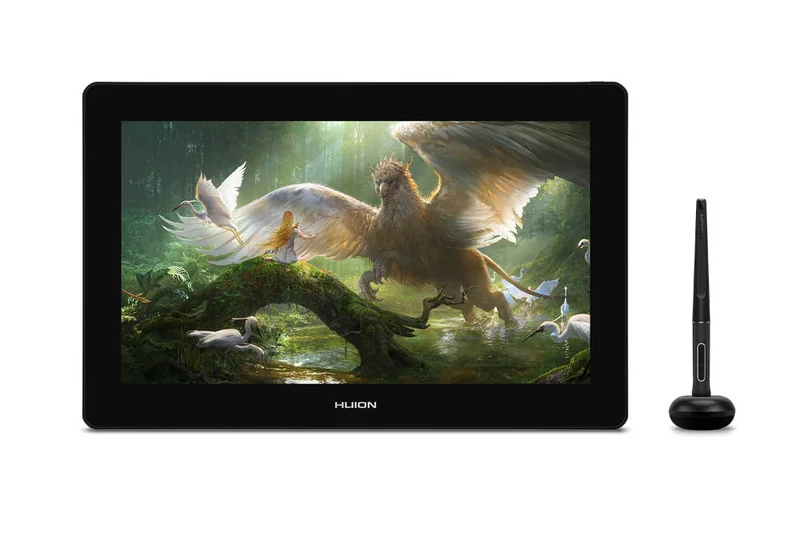
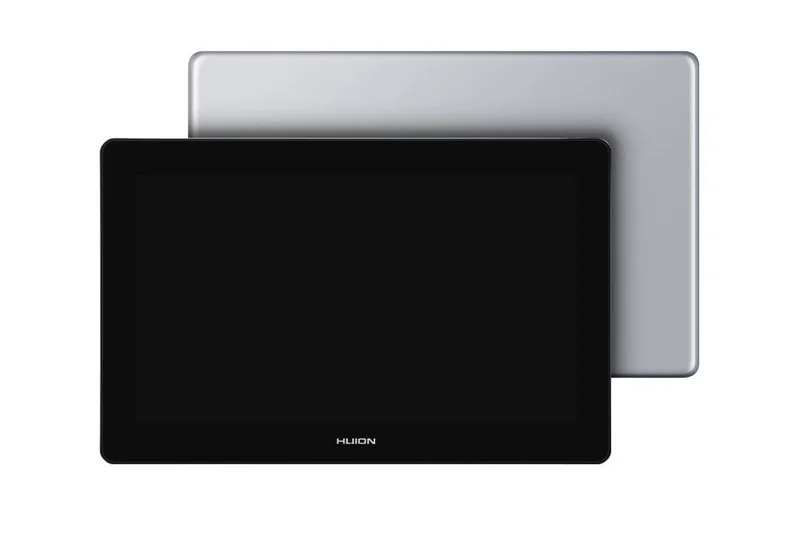
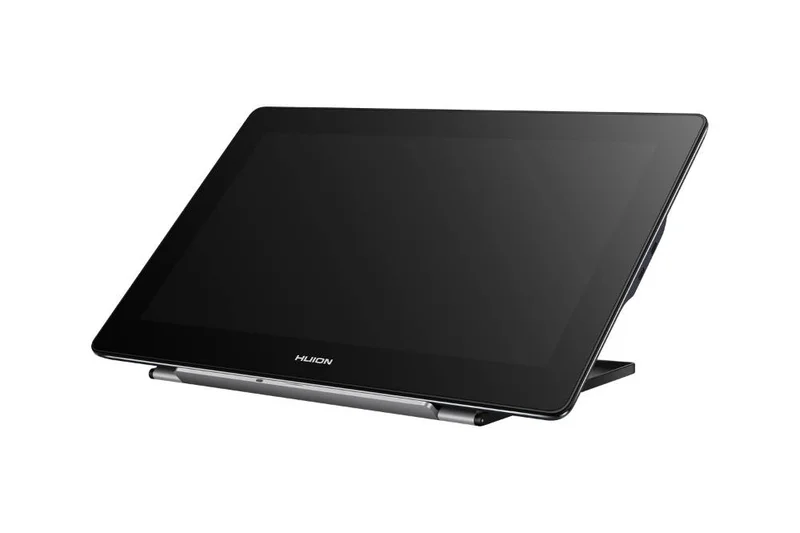
Why we picked it: The Huion Kamvas Pro 16 (4K) delivers ultra-crisp resolution in a compact form factor. Cramming 4K pixels into a 15.6-inch fully laminated screen means you can scrutinize the finest details of your artwork. With 120% sRGB coverage, the colors pop beautifully, and the PW517 pen provides a solid, reliable drawing feel.
Key Specs
- 15.6-inch 4K UHD (3840x2160) resolution
- PW517 Battery-Free Pen with 8,192 pressure levels
- 120% sRGB wide color gamut
- Fully laminated anti-glare glass screen
- Dual USB-C ports for easy connection
What we like
- Incredibly sharp 4K resolution
- Fully laminated screen with zero visible parallax
- Rich, vivid color reproduction
- Premium aluminum back casing
What we don't like
- 4K on a 16-inch screen requires heavy OS scaling
- Does not include an adjustable stand in the base package
Best for: Photo editors and detail-oriented artists who need 4K resolution but lack the desk space for a 24-inch monitor.
Considering Kamvas Pro 16 (4K) vs Xencelabs 16? The Huion is more affordable, but Xencelabs provides a vastly superior OLED panel and a richer accessory bundle.
A sleek, pixel-dense 16-inch display that brings 4K clarity to smaller desk setups.
Buy at Huion official site#23 XP-Pen Artist Pro 24 (Gen 2) 4K
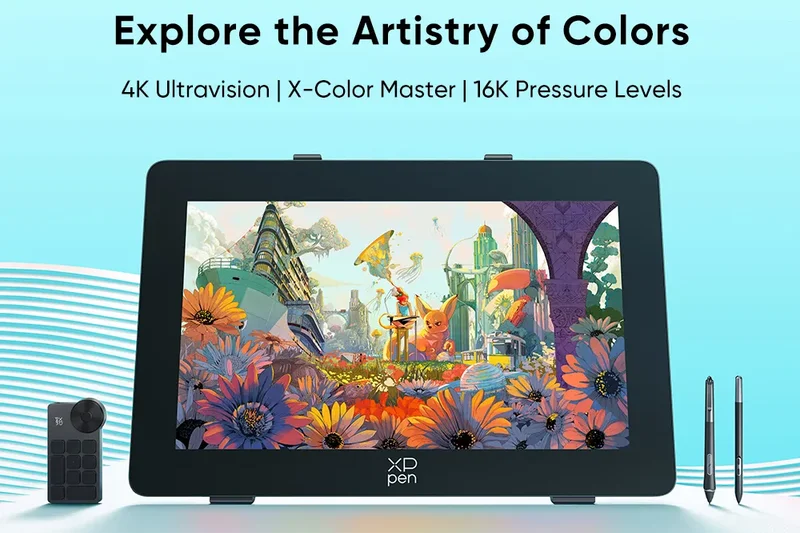
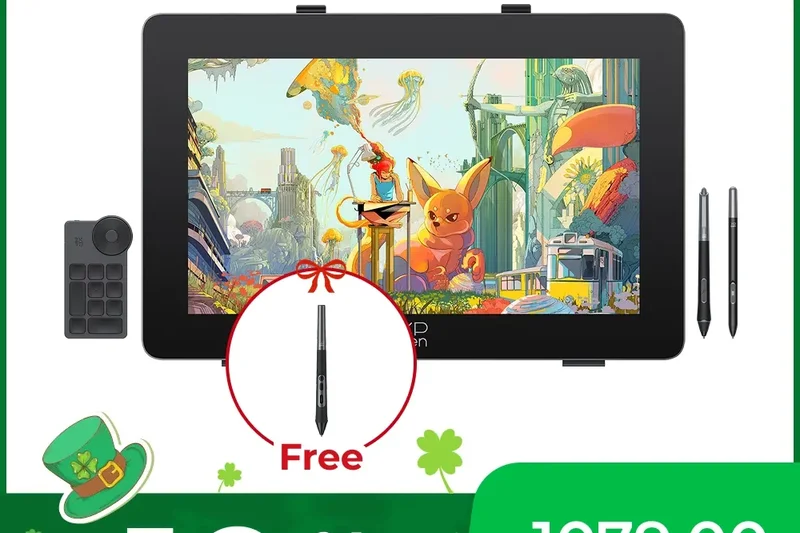
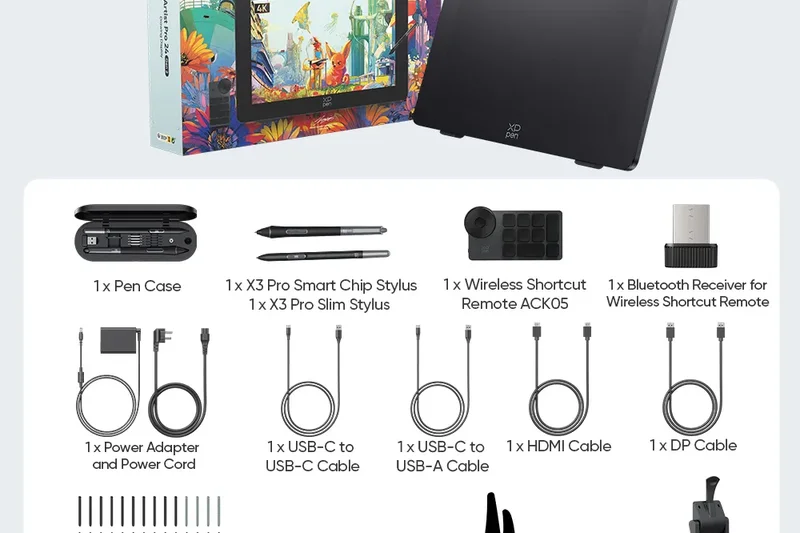
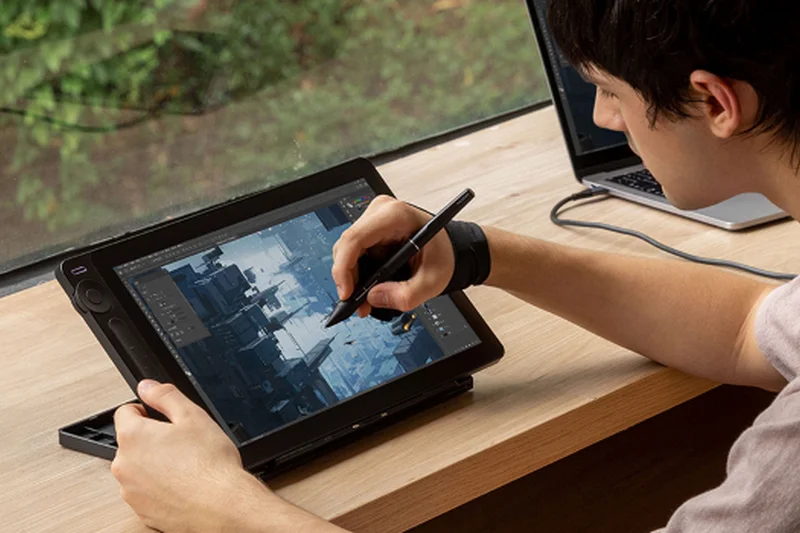
Why we picked it: The XP-Pen Artist Pro 24 (Gen 2) 4K offers a massive, color-accurate workspace at a price that aggressively undercuts the competition. With Calman Verified color and the ultra-sensitive X3 Pro stylus, it provides professional-grade features. The inclusion of free ColorMaster software and a wireless hotkey remote sweetens an already fantastic deal.
Key Specs
- 23.8-inch 4K UHD (3840x2160) display
- Calman Verified color accuracy
- X3 Pro Smart Chip Stylus with 16,384 pressure levels
- 300 nits typical brightness
- Free ColorMaster calibration software included
- Includes hotkey wireless remote controller
What we like
- Massive 24-inch 4K screen for a great price
- Calman Verified for excellent color accuracy
- Includes wireless remote and calibration software
- 16,384 pressure levels for fine shading
What we don't like
- Large footprint requires a dedicated desk space
- Display is 60Hz, not 120Hz/144Hz like pricier competitors
Best for: Freelancers and studio artists who need a large 4K display with accurate colors but are mindful of their budget.
Considering Artist Pro 24 vs Wacom Cintiq Pro 27? The XP-Pen is remarkably affordable and great for 2D, while Wacom offers a much faster 120Hz display and multi-touch.
An outstanding large-format 4K display that delivers professional color and precision at an unbeatable price point.
Buy at XP-Pen official site#24 Huion Kamvas 13 (Gen 3)
Why we picked it: The Kamvas 13 (Gen 3) is a brilliant entry-level pen display that doesn't feel cheap. For under $250, you get a fully laminated 1080p screen, the highly responsive PenTech 4.0 stylus, and dual dial controllers built right into the bezel. It is incredibly easy to set up with a single USB-C cable and is portable enough to throw in a backpack alongside a laptop.
Key Specs
- 13.3-inch Full HD (1920x1080) laminated screen
- PenTech 4.0 stylus with 16,384 pressure levels
- 99% sRGB color gamut
- Dual dial controller design on tablet bezel
- Single USB-C cable connection
What we like
- Incredible value for a laminated pen display
- Dual dial controllers make zooming and brush sizing effortless
- Compact and highly portable
- Single USB-C connection reduces desk clutter
What we don't like
- 13.3-inch screen can feel restrictive for complex software UI
- Stand is often sold separately
Best for: Beginners, students, and laptop users who want a highly capable, affordable pen display with physical shortcut dials.
Considering Kamvas 13 vs Wacom One 13? The Kamvas offers a laminated screen and physical hotkeys for much less money, though Wacom edges it out slightly in brand software stability.
A perfect entry-level pen display that punches way above its price tag with excellent pen tech and physical dials.
Buy at Huion official site#25 Wacom One 13 Touch
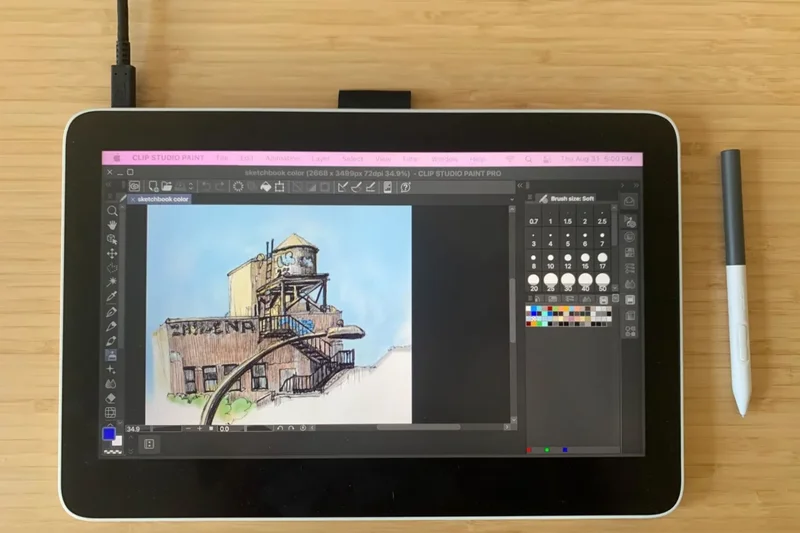
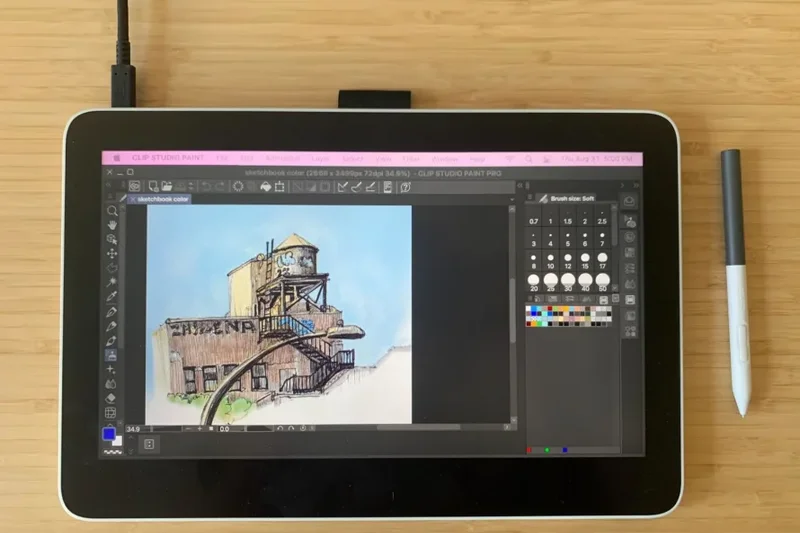
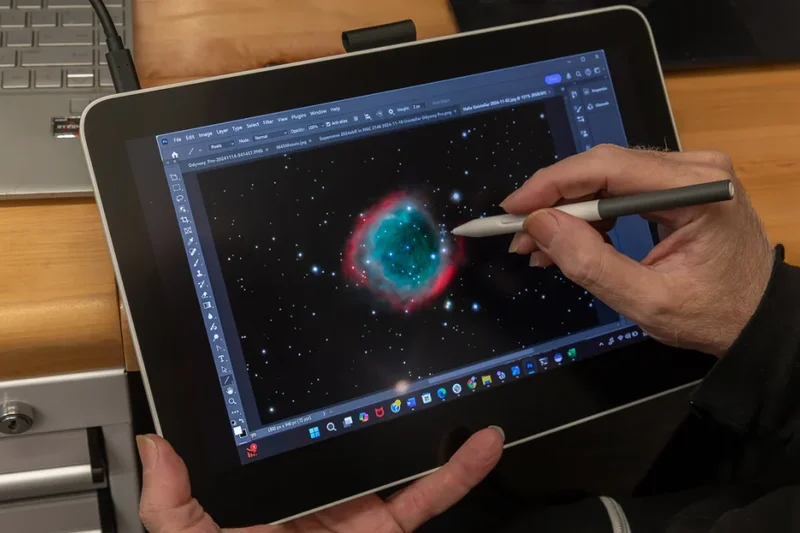
Why we picked it: The Wacom One 13 Touch serves as Wacom's entry-level screen display, bringing reliable digitizer technology and multi-touch capabilities to beginners. It features a simplified single USB-C setup and a very natural-feeling 1080p screen. While it uses the basic 4,096-level pen, Wacom's pressure curves make it feel more responsive than many competitor pens with higher listed specs.
Key Specs
- 13.3-inch Full HD (1920x1080) screen
- 10-finger multi-touch capabilities
- Wacom One Standard Pen with 4,096 pressure levels
- 99% sRGB color gamut coverage
- Single USB-C connection for simplified desk setups
What we like
- Multi-touch support is excellent at this price point
- Very clean, single-cable setup
- Reliable Wacom drivers and pen feel
- Compact and easy to store
What we don't like
- Screen is not fully laminated, causing minor parallax
- Pen pressure levels are lower than competitors
Best for: Beginners who want to learn digital art on a Wacom device with the added benefit of intuitive touch gestures.
Considering Wacom One 13 vs Huion Kamvas 13? The Wacom offers multi-touch gestures, while the Huion provides a fully laminated screen and physical hotkeys for less.
A solid, approachable entry into the Wacom ecosystem with the added convenience of multi-touch navigation.
Buy at Wacom official site#26 Wacom Intuos Pro (Medium)
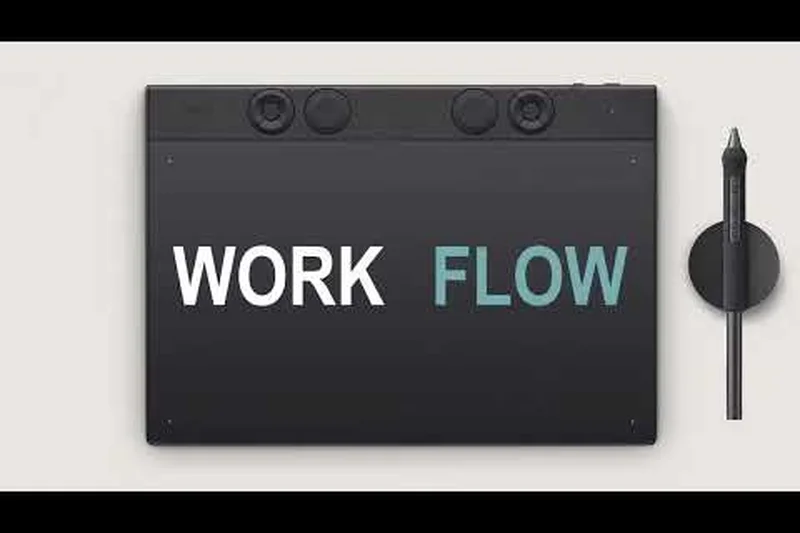
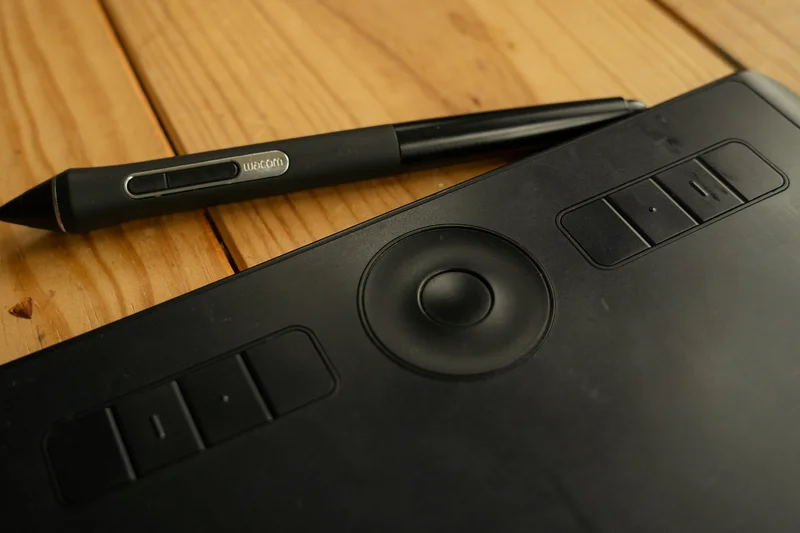
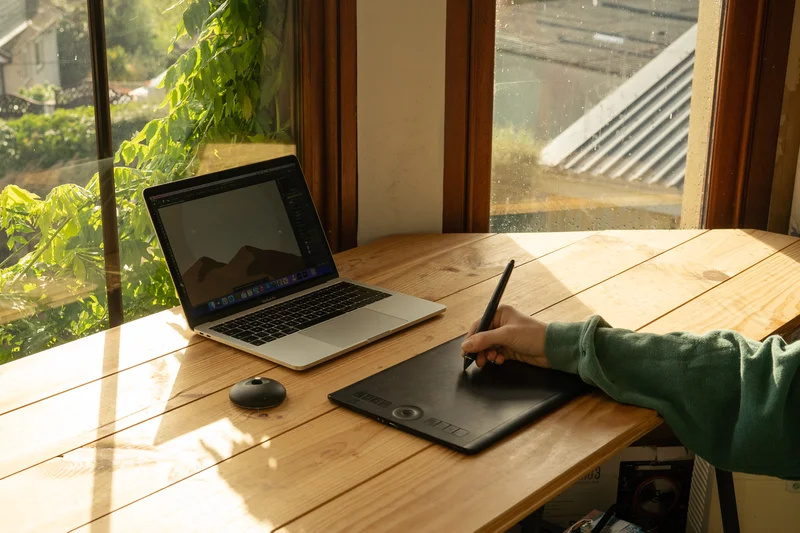
Why we picked it: The Wacom Intuos Pro remains the industry standard for screenless pen tablets. Its robust build quality, highly customizable ExpressKeys, and multi-touch surface make it a staple in professional photo retouching and 3D sculpting workflows. The Pro Pen 2 is perfectly weighted, and the physical texture of the drawing surface mimics paper brilliantly while keeping your posture upright.
Key Specs
- 8.7 x 5.8-inch active drawing area
- Wacom Pro Pen 2 with 8,192 pressure levels
- Multi-touch surface for gesture control
- Bluetooth connectivity for wireless drawing
- 8 customizable ExpressKeys and Touch Ring
What we like
- Industry-standard reliability and durability
- Excellent ergonomic desk posture since you look at your monitor
- Touch Ring and ExpressKeys are highly productive
- Wireless Bluetooth capability
What we don't like
- Drawing without looking at your hand requires a steep learning curve
- Nib wear is notoriously fast on the default texture sheet
Best for: Professional photo retouchers, 3D artists, and illustrators who prioritize desk ergonomics over drawing directly on a screen.
Considering Intuos Pro vs Xencelabs Medium? Both are excellent screenless tablets, but Xencelabs offers two pens and an OLED remote in a bundle that rivals Wacom's classic.
The undisputed king of screenless graphics tablets, offering unparalleled workflow speed and ergonomic benefits.
Buy at Wacom official site#27 Huion Kamvas 22 (Gen 3)
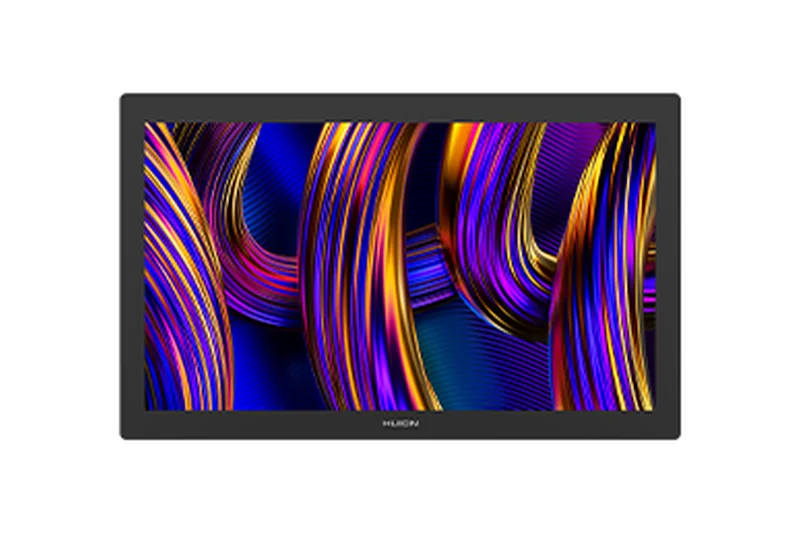
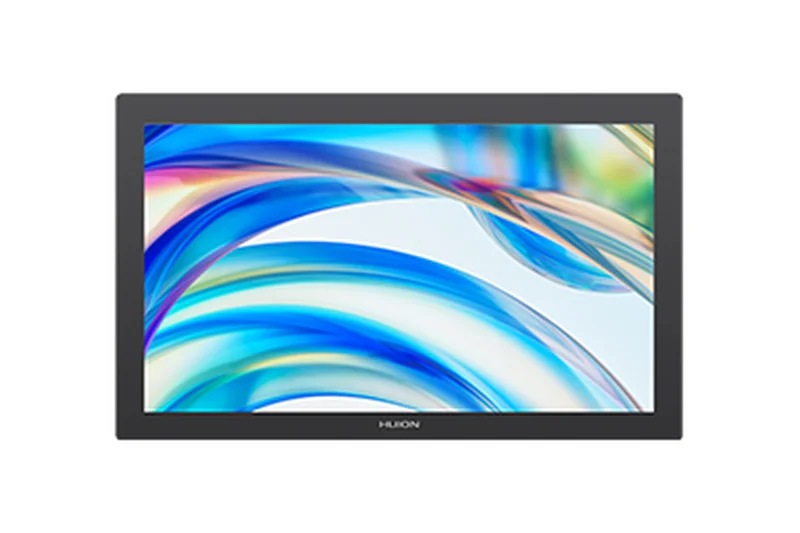
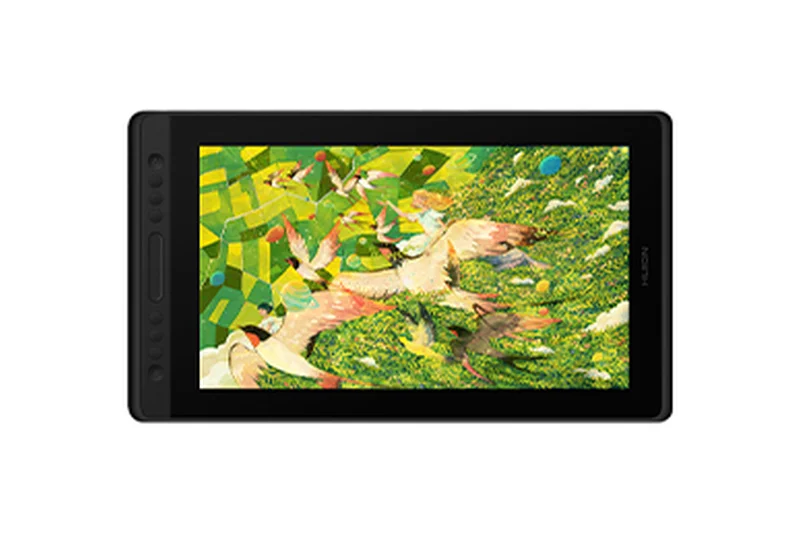
Why we picked it: The Kamvas 22 (Gen 3) is an excellent mid-range option for artists seeking a larger canvas without jumping to 4K prices. It features a sharp 2.5K QHD display with a 90Hz refresh rate, providing smooth, lag-free strokes. The Laminated Canvas Glass 2.0 effectively reduces glare and parallax, offering a spacious and comfortable drawing experience.
Key Specs
- 21.5-inch 2.5K QHD (2560x1440) display
- 90Hz refresh rate for smoother strokes
- PenTech 4.0 EMR stylus with 16,384 pressure levels
- 99% sRGB and 90% Adobe RGB color coverage
- Laminated Canvas Glass 2.0 anti-glare screen
- Adjustable stand included
What we like
- Great 21.5-inch size for broad arm strokes
- 90Hz refresh rate is a noticeable improvement over 60Hz
- Solid, adjustable metal stand included
- Excellent price-to-size ratio
What we don't like
- Lacks built-in shortcut keys
- 1440p resolution is good, but lacks the crispness of 4K
Best for: Artists who want a large desktop drawing monitor with a smooth refresh rate but have a mid-range budget.
Considering Kamvas 22 vs XP-Pen Artist 22 Plus? The Kamvas offers a superior 2.5K 90Hz screen, whereas the XP-Pen is limited to 1080p 60Hz but costs less.
A highly capable large-format display that smooths out your workflow with a 90Hz 2.5K screen.
Buy at Huion official site#28 Xencelabs Pen Tablet Medium Bundle
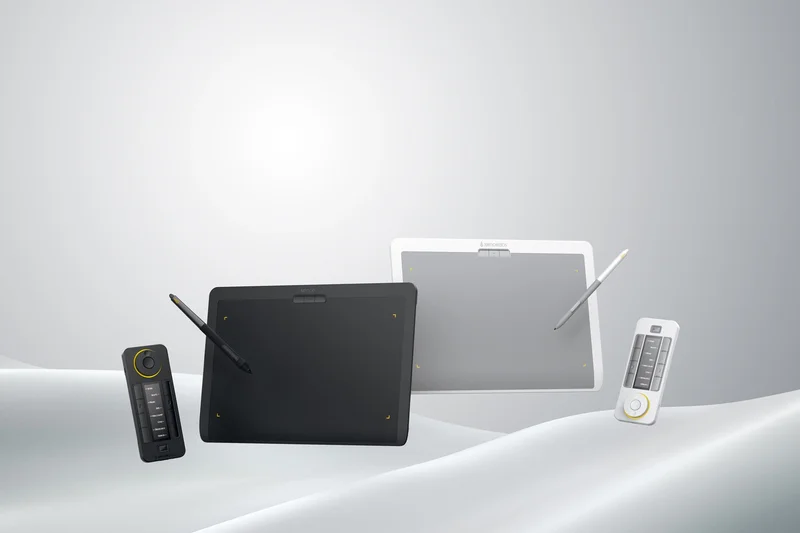
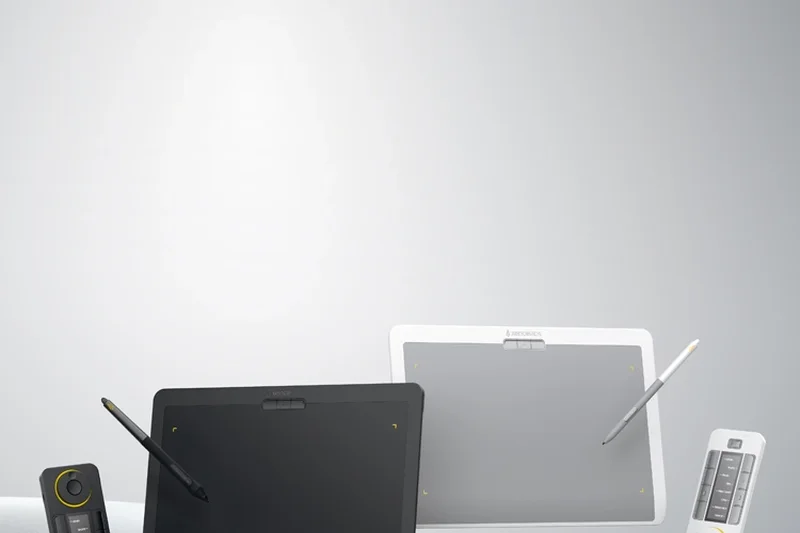
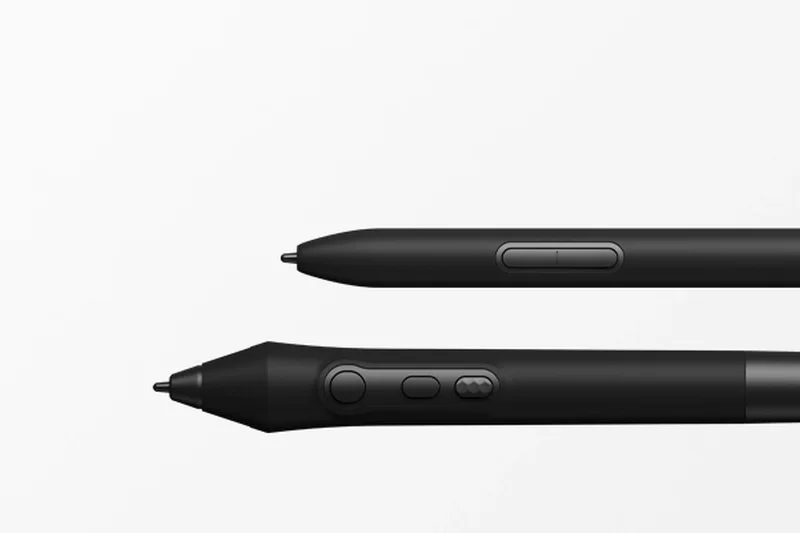
Why we picked it: Xencelabs was founded by former Wacom engineers, and it shows. This Medium Pen Tablet is a masterclass in ergonomics and value. The drawing surface has a gentle, sloping wrist rest, and the bundle includes an innovative OLED Quick Keys remote that sits wherever is most comfortable for your non-drawing hand. The inclusion of both a 3-button and a thin pen ensures you have the right tool for any task.
Key Specs
- 10.33 x 5.8-inch active drawing area
- Includes two styluses (3-Button Pen and Thin Pen)
- Comes with OLED display Quick Keys remote
- Wireless and USB connectivity
- Designed in collaboration with professional artists
What we like
- Incredible value with two pens and a wireless OLED remote
- Beautifully ergonomic design with a sloped wrist rest
- Drawing surface texture is perfectly balanced
- Excellent wireless connectivity
What we don't like
- Requires a learning curve if you are used to drawing on screens
- The software driver UI could be slightly more intuitive
Best for: Professionals and enthusiasts looking for a premium screenless tablet bundle that directly rivals the Wacom Intuos Pro.
Considering Xencelabs Medium vs Wacom Intuos Pro? Xencelabs provides far more value out of the box with its dual pens and remote, while Wacom offers multi-touch surface capabilities.
A premium, thoughtfully designed screenless tablet bundle that offers unmatched value and ergonomic comfort.
Buy at Xencelabs official site#29 XP-Pen Artist 22 Plus
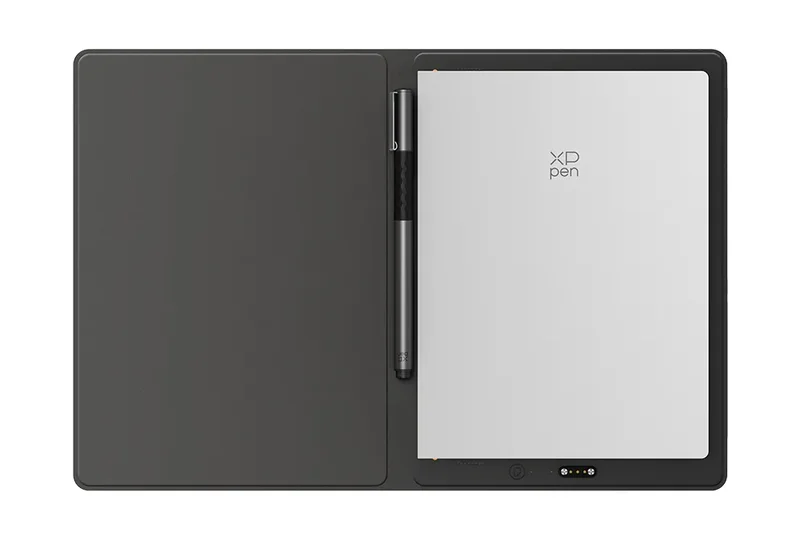
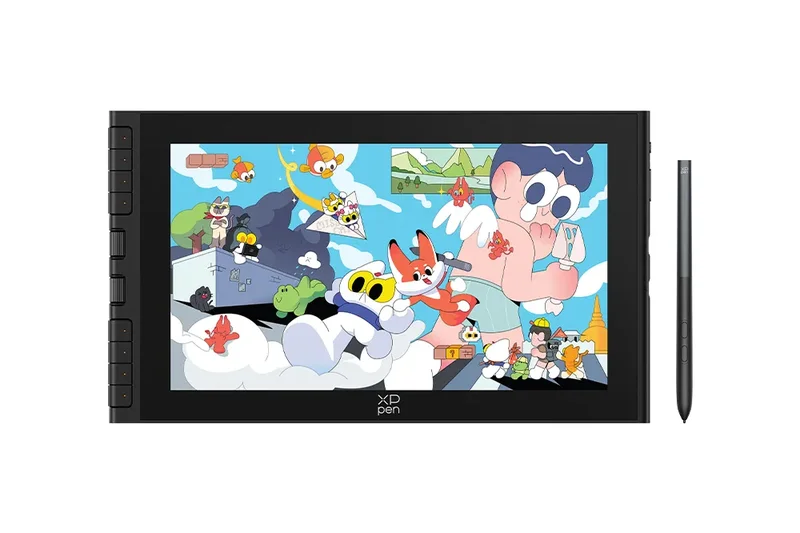
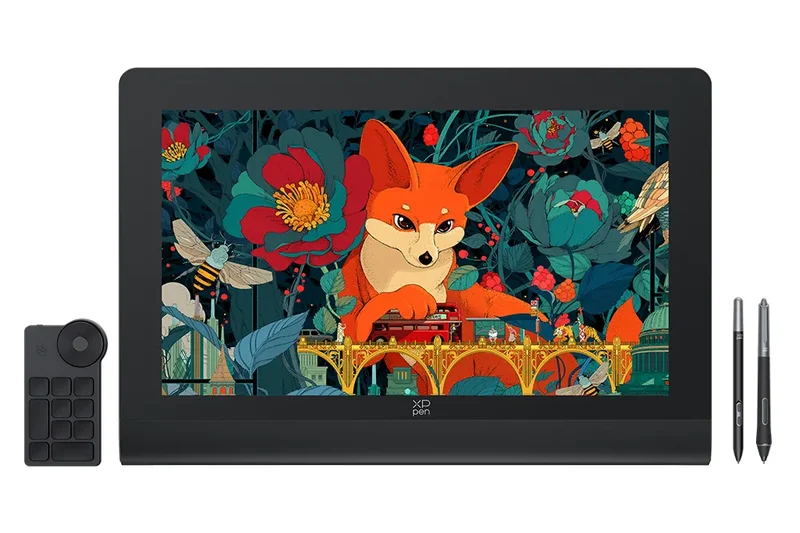
Why we picked it: The XP-Pen Artist 22 Plus gives you a massive 21.5-inch drawing area for under $500. While the resolution is capped at 1080p, the display is fully laminated, ensuring your pen strokes land exactly where you expect. It boasts an ultra-wide 130% sRGB color gamut and includes a highly adjustable VESA-mountable stand, making it a great budget centerpiece for a desktop studio.
Key Specs
- 21.5-inch Full HD (1920x1080) screen
- X3 Pro Smart Chip Stylus with 16,384 pressure levels
- 130% sRGB wide color gamut
- Fully laminated display reduces parallax
- Adjustable VESA-mountable stand
What we like
- Huge drawing real estate for a budget price
- Fully laminated screen reduces parallax
- Wide color gamut makes artwork pop
- Sturdy, adjustable stand is included
What we don't like
- 1080p resolution on a 22-inch screen looks somewhat pixelated
- No physical hotkeys on the device
Best for: Budget-conscious artists who prioritize a large physical canvas over ultra-high resolution.
Considering Artist 22 Plus vs Huion Kamvas 22 (Gen 3)? The XP-Pen is significantly cheaper, but the Huion offers a sharper 2.5K screen with a faster 90Hz refresh rate.
An expansive, budget-friendly 22-inch display that offers great color and lamination for entry-level studio setups.
Buy at XP-Pen official site#30 XP-Pen Deco Pro MW (Gen 2)
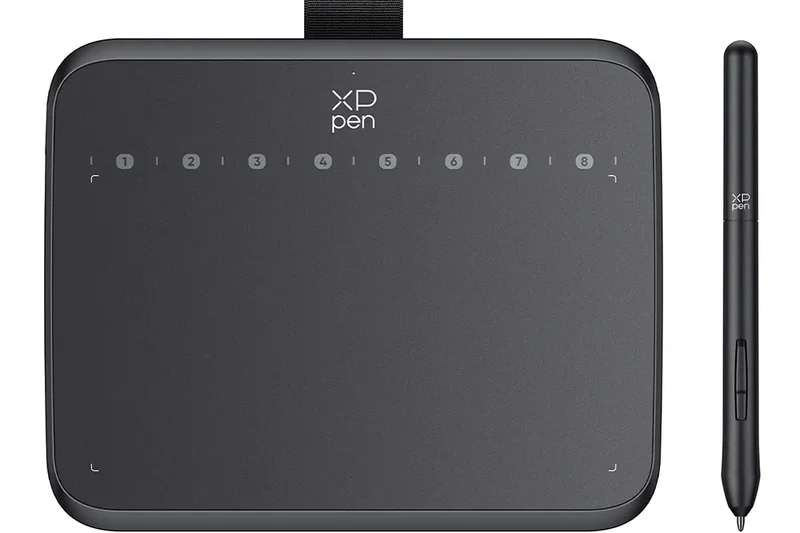
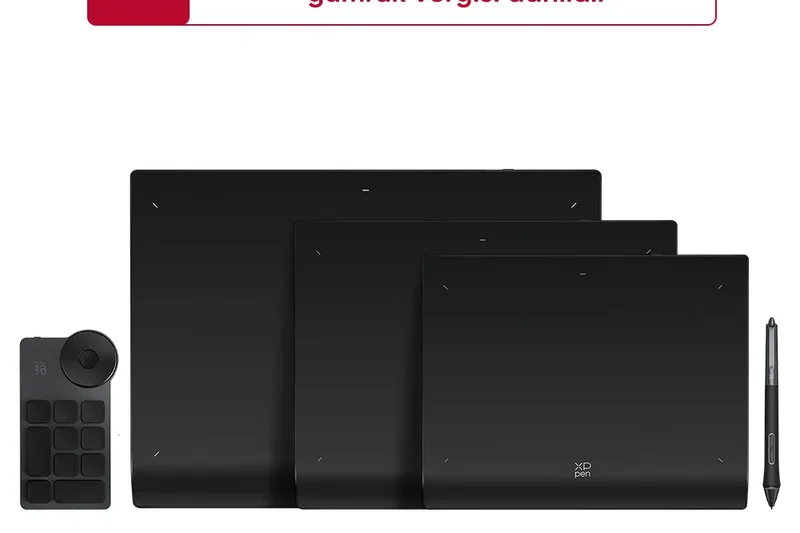
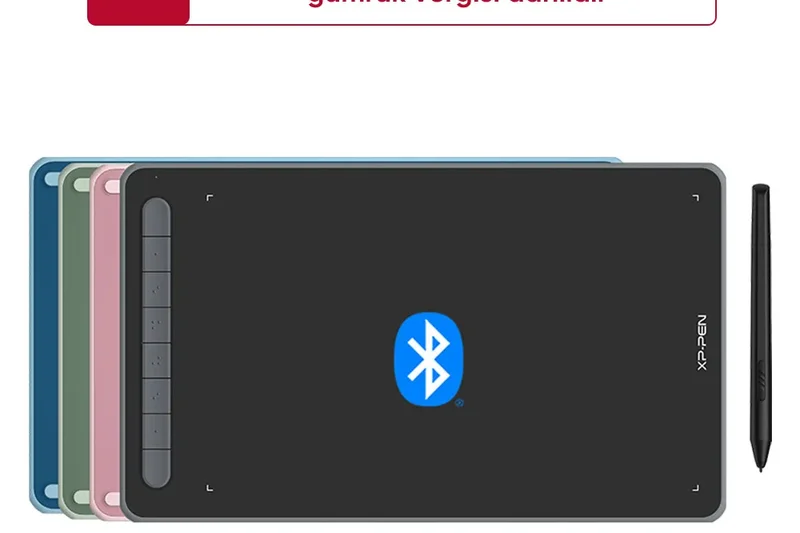
Why we picked it: The Deco Pro MW (Gen 2) is a sleek, highly functional screenless tablet that connects wirelessly via Bluetooth. Its standout feature is the dual-dial controller setup, which allows you to intuitively zoom in on your canvas while adjusting brush sizes simultaneously. The X3 Pro stylus is incredibly sensitive, making this a top choice for digital painters and photo editors alike.
Key Specs
- 11 x 6-inch active drawing area
- X3 Pro Smart Chip Stylus with 16,384 pressure levels
- Bluetooth 5.0 wireless connectivity
- 8 shortcut keys and dual dial controls
- Ergonomic curved wrist rest design
What we like
- Dual mechanical dials are fantastic for workflow speed
- Reliable Bluetooth 5.0 wireless connection
- Premium aluminum casing and ergonomic wrist rest
- Very high 16,384 pressure sensitivity
What we don't like
- Can be a bit large to travel with compared to smaller tablets
- Dials can sometimes be overly sensitive
Best for: Desk-bound illustrators who want a premium, wireless screenless tablet with highly tactile physical controls.
Considering Deco Pro MW vs Huion Inspiroy Dial 2? Both feature dual dials, but the XP-Pen has a sleeker aluminum chassis and higher pressure sensitivity levels.
A premium, wireless graphics tablet with ingenious dual-dial controls that speed up any creative workflow.
Buy at XP-Pen official site#31 Huion Inspiroy Dial 2
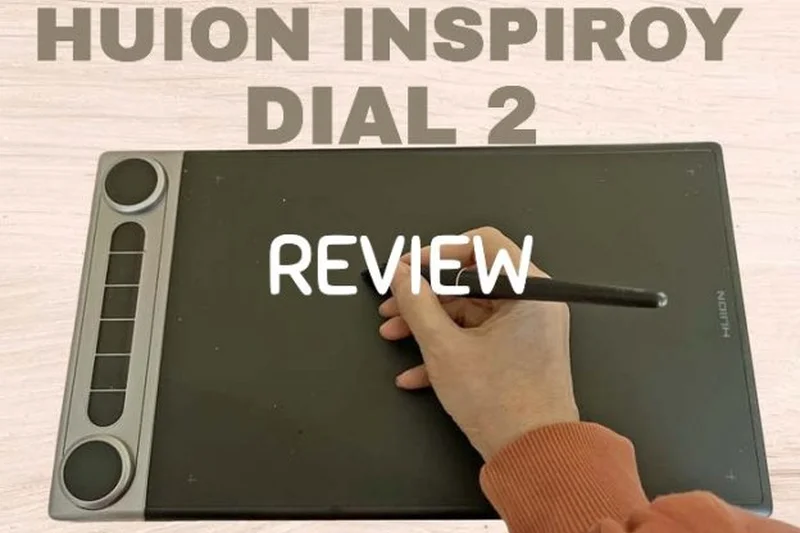
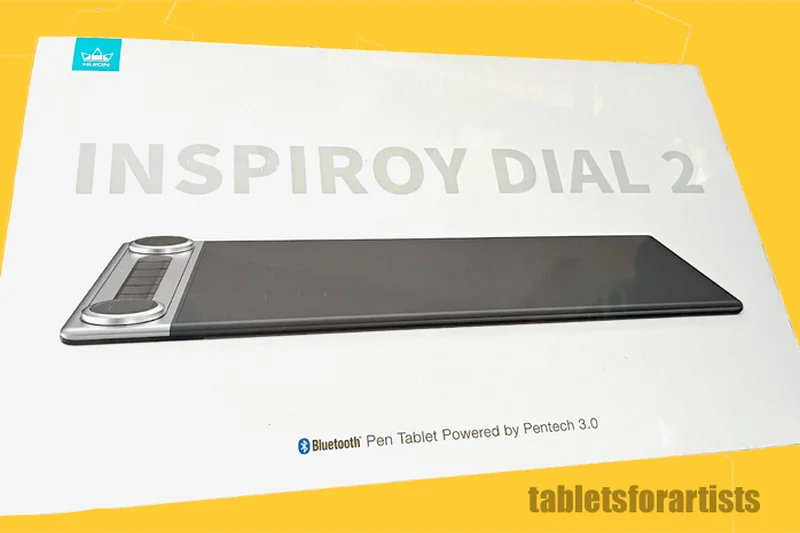
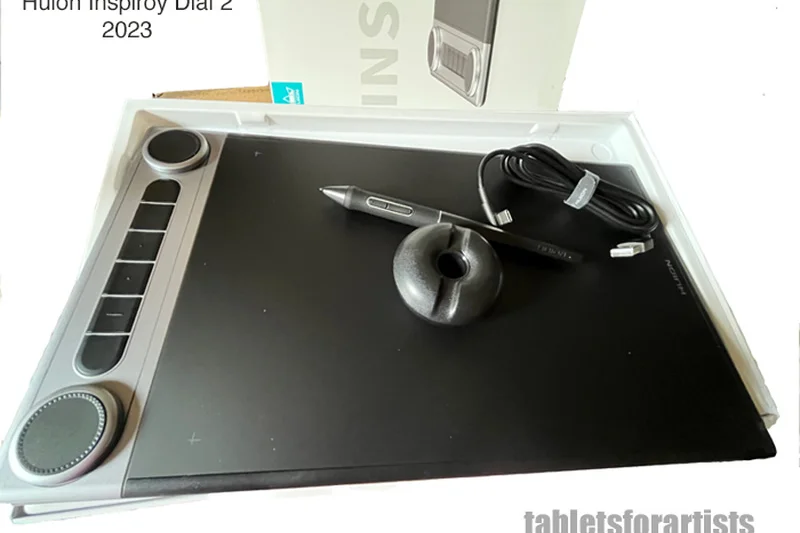
Why we picked it: The Inspiroy Dial 2 is a fantastic screenless tablet featuring two mechanical dials and a symmetrical design, making it equally comfortable for left- and right-handed artists. The tactile feedback of the dials allows for precise adjustments without looking away from the screen, and the Bluetooth 5.0 connection ensures a clean, wire-free desk.
Key Specs
- 10.5 x 6.5-inch active drawing surface
- Dual dial controllers for intuitive zooming/brush sizing
- PW517 Battery-Free Pen
- Bluetooth 5.0 wireless functionality
- Symmetrical design suits both left and right-handed artists
What we like
- Dual mechanical dials with satisfying tactile clicks
- Symmetrical layout is perfect for lefties
- Stable wireless Bluetooth connection
- Excellent PW517 pen response
What we don't like
- Surface texture can wear out nibs fairly quickly
- Driver software can occasionally forget dial mappings
Best for: Left-handed artists and workflow optimizers who want tactile, physical controls on a screenless tablet.
Considering Inspiroy Dial 2 vs Wacom Intuos Pro? The Wacom offers a multi-touch surface, while the Huion provides the unique, highly productive dual mechanical dials at a lower price.
A highly productive, symmetrical graphics tablet defined by its excellent dual-dial shortcut system.
Buy at Huion official site#32 Gaomon PD2200
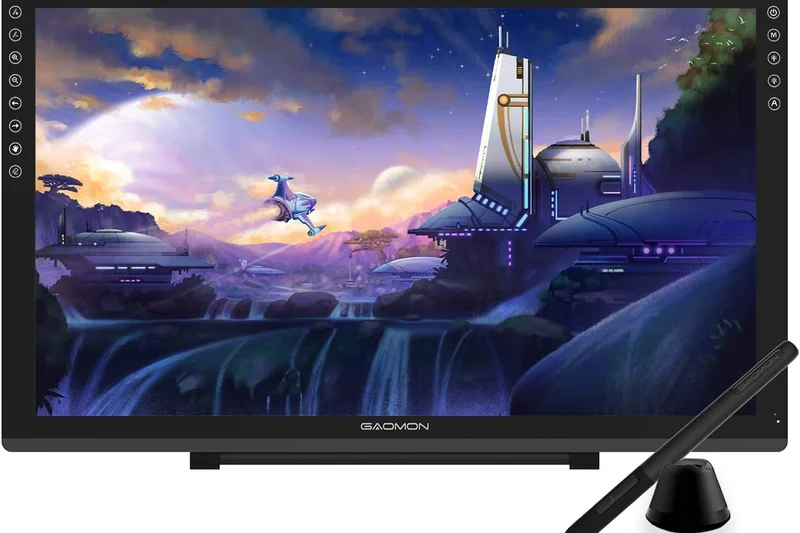
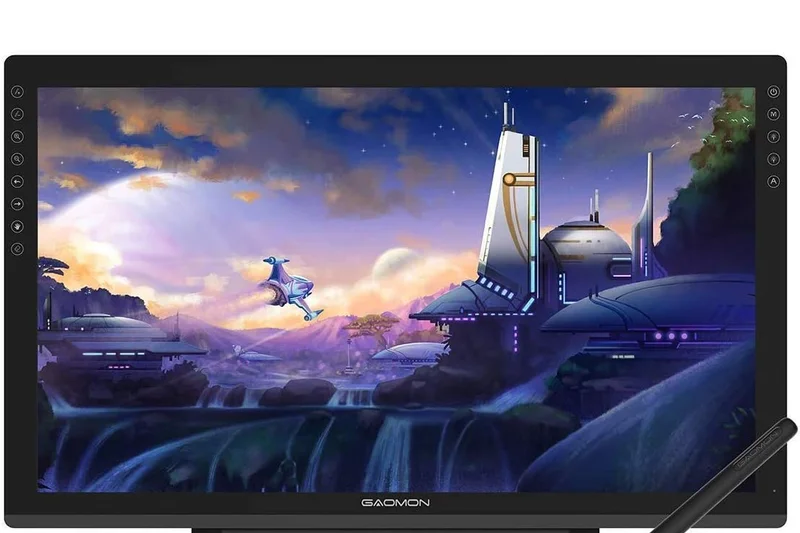
Why we picked it: The Gaomon PD2200 is a budget-tier 21.5-inch pen display that provides a lot of screen real estate for under $400. It features 8 customizable capacitive touch keys along the side, giving you quick access to shortcuts without needing a keyboard. The fully laminated screen helps reduce parallax, making it a viable option for hobbyists graduating to a large format.
Key Specs
- 21.5-inch Full HD (1920x1080) laminated screen
- AP32 Battery-free pen with 8,192 pressure levels
- 92% NTSC wide color gamut
- 8 customizable capacitive touch keys
- Includes fully adjustable metal stand
What we like
- Very affordable for a 21.5-inch display
- Capacitive touch keys are a nice inclusion
- Laminated screen improves accuracy
- Adjustable stand included
What we don't like
- 1080p resolution on a 22-inch screen is low
- Color accuracy is decent but not professional grade
Best for: Hobbyists looking to upgrade to a large-format screen on a strict budget.
Considering Gaomon PD2200 vs XP-Pen Artist 22 Plus? The XP-Pen offers a wider color gamut and newer pen technology, though the Gaomon includes built-in touch shortcut keys.
A highly affordable, large-format pen display that gets the basics right for budget-conscious hobbyists.
Buy at Gaomon official site#33 One by Wacom (Small)
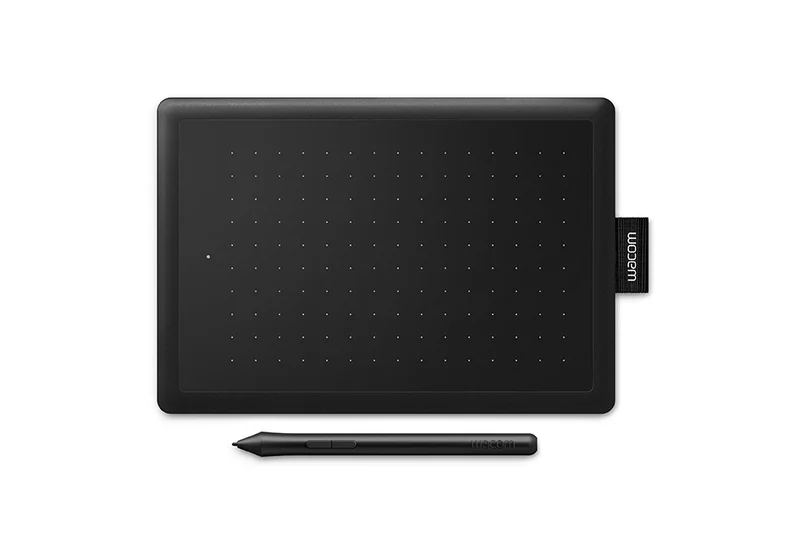
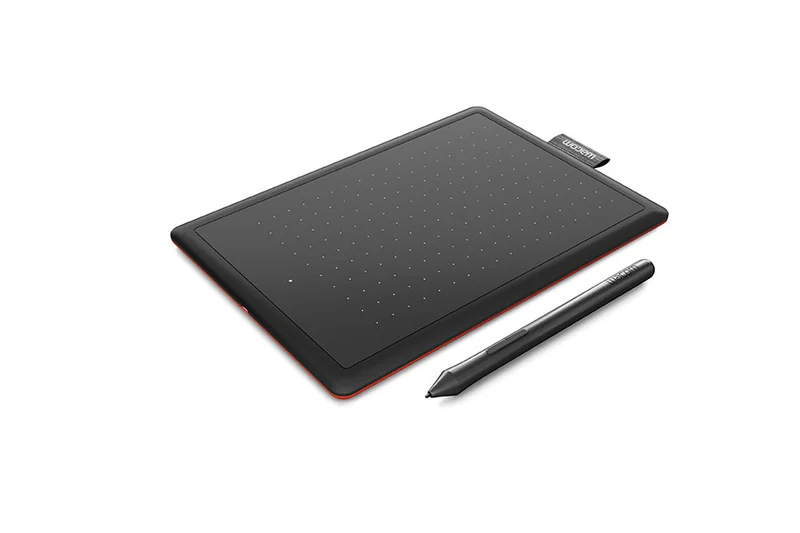
Why we picked it: The One by Wacom is the most stripped-down, affordable entry point into the Wacom ecosystem. It does away with express keys, wireless connectivity, and multi-touch, focusing purely on delivering Wacom's renowned pen tracking. It is ultra-portable, practically indestructible, and an excellent tool for remote tutoring, simple digital sketching, or playing rhythm games like OSU!
Key Specs
- 6.0 x 3.7-inch active area
- Battery-free pen with 2,048 pressure levels
- Lightweight and highly portable
- Simple plug-and-play USB integration
- Includes access to free creative software trials
What we like
- Incredibly cheap entry into reliable Wacom tech
- Ultra-lightweight and fits in any laptop sleeve
- Plug-and-play simplicity
- Very durable build quality
What we don't like
- No physical shortcut keys
- Small 6x3.7-inch area can feel cramped for large arm strokes
Best for: Absolute beginners, remote educators, and OSU! players who need a cheap, reliable input device.
Considering One by Wacom vs XP-Pen Star G640? The XP-Pen offers higher pressure sensitivity (8,192 vs 2,048) and a slightly thinner profile, while Wacom offers legendary driver stability.
A no-frills, highly reliable budget tablet that does exactly what it needs to do.
Buy at Wacom official site#34 XP-Pen Star G640
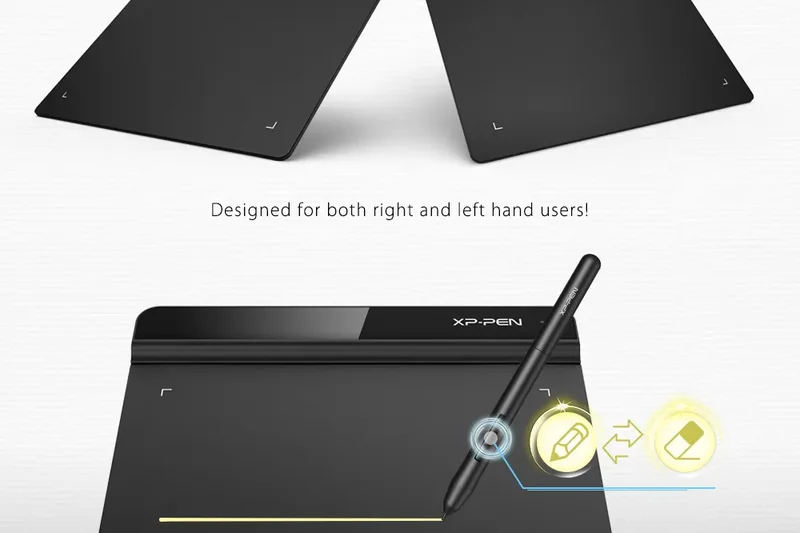
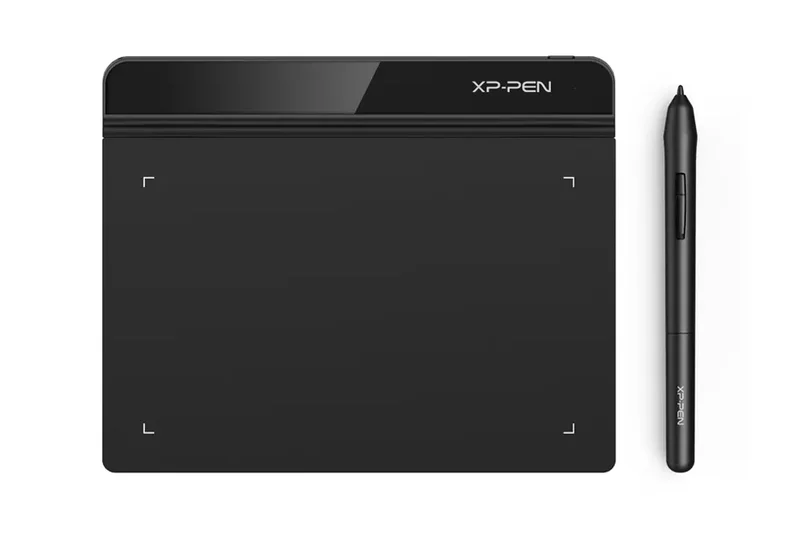
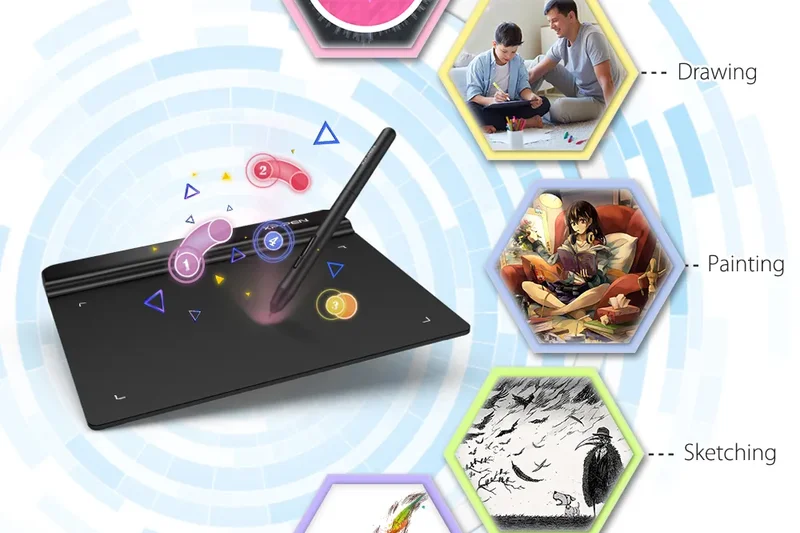
Why we picked it: The XP-Pen Star G640 is a legendary ultra-budget tablet. Originally popularized by OSU! players for its high polling rate and low latency, it serves as a fantastic, dirt-cheap digital drawing surface. At just 2mm thick, it sits flush with your desk, and its battery-free pen offers 8,192 levels of pressure sensitivity—astounding for a device that costs less than a video game.
Key Specs
- 6 x 4-inch active working area
- P01 Battery-Free Stylus with 8,192 pressure levels
- Ultra-thin 2mm body
- Excellent entry point for beginners and OSU! players
- Plug-and-play USB connection
What we like
- Unbeatable price point
- High pressure sensitivity for the cost
- Ultra-thin 2mm profile is very comfortable for the wrist
- High polling rate is great for fast movements
What we don't like
- Lacks shortcut keys
- Build quality feels slightly flimsy due to how thin it is
Best for: Gamers, students, and curious beginners who want to try digital art for the absolute minimum investment.
Considering Star G640 vs One by Wacom? The G640 offers a thinner design and higher pen pressure levels, while the Wacom provides slightly better brand reliability.
The ultimate ultra-budget tablet, offering surprisingly good pen tech for an incredibly low price.
Buy at XP-Pen official site#35 Simbans PicassoTab XL
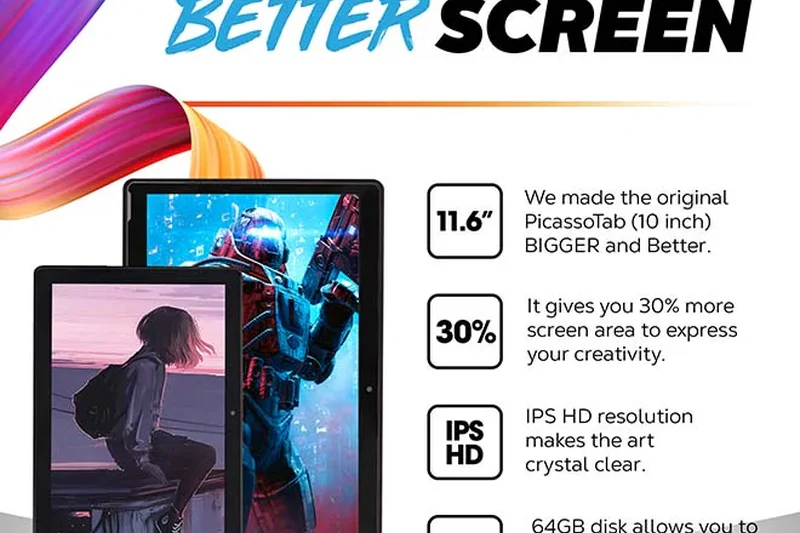
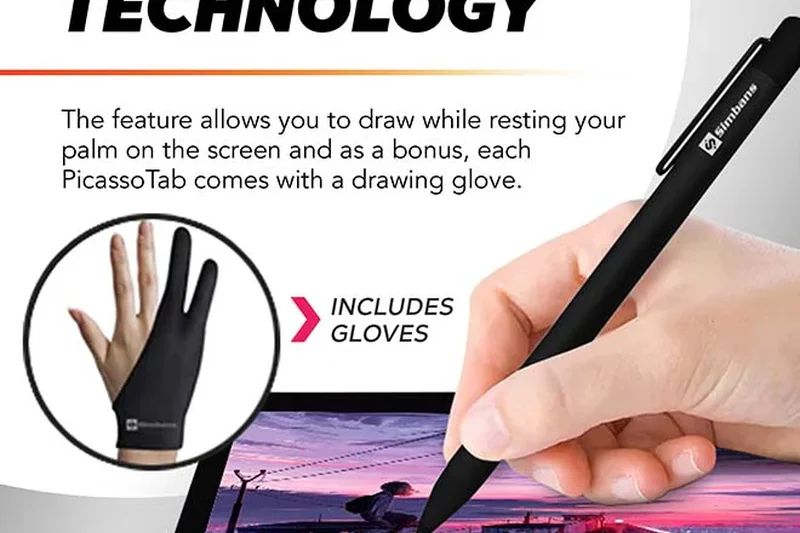
Why we picked it: The Simbans PicassoTab XL is a niche budget Android tablet that comes pre-packaged as a complete beginner's drawing kit. It includes the active stylus, a drawing glove, a case, and pre-installed software right out of the box. While its specs are distinctly low-end, it serves as an all-in-one, highly affordable gift for young children showing an interest in digital art.
Key Specs
- 11.6-inch IPS HD display
- Active stylus pen included in box
- Android OS with pre-installed Autodesk Sketchbook
- MediaTek quad-core processor
- Includes drawing glove and protective case
What we like
- Complete all-in-one kit right out of the box
- Very affordable for a standalone device with a screen
- Large 11.6-inch screen size
- Pre-installed software makes it easy for kids to start
What we don't like
- Low-end processor can lag with complex brushes
- Pen lacks the precision and low IAF of Wacom/Apple
Best for: Young children or absolute beginners needing a complete, standalone digital art kit on a very tight budget.
Considering PicassoTab XL vs iPad (11th Gen)? The iPad is vastly superior in every technical metric and software availability, but the Simbans is cheaper and includes the pen and accessories.
An affordable, all-in-one starter kit that makes a great introductory gift for young aspiring digital artists.
Buy at Simbans official siteBuying Guide
Drawing Tablets Demystified: Which Should You Buy?
Selecting the right drawing tablet can feel overwhelming due to the sheer variety of form factors, connectivity options, and stylus technologies on the market today. Your first decision should always be grounded in your workspace needs, artistic skill level, and software preferences.
1. Understanding Form Factors
Standalone Tablets: Devices like the iPad Pro and Samsung Galaxy Tab S11 Ultra function without needing to be tethered to a PC. They have their own internal processors, batteries, and operating systems (iPadOS, Android). These are the ultimate tools for mobile artists, illustrators who sketch in cafes, or professionals seeking a secondary digital sketchbook. The downside is that they often use mobile versions of creative software, though apps like Procreate and the full port of Clip Studio Paint have mostly erased this gap.
Pen Displays: These are monitors you can draw directly on (like the Wacom Cintiq or Huion Kamvas lines). They must be connected to a computer (Windows or Mac) to function. Pen displays offer the tactile satisfaction of drawing directly on your artwork while utilizing full-fledged desktop software. They range from highly portable 13-inch models to massive 27-inch studio command centers. Be prepared for robust cable management and ergonomic stand setups.
Pen Tablets (Screenless Graphic Tablets): The most traditional and budget-friendly option. You draw on a blank slate while looking up at your computer monitor. While they come with a steep hand-eye coordination learning curve, they offer phenomenal ergonomic benefits (your neck stays upright) and top-tier stylus performance at a fraction of the cost of a pen display. Excellent for beginners or professionals who prioritize a minimalist desk.
2. The Stylus is Everything
Never buy a drawing tablet without scrutinizing the pen. You want a stylus with high pressure sensitivity (at least 8,192 levels, though 16,384 is becoming the standard), tilt recognition to allow for realistic shading, and a remarkably low Initial Activation Force (IAF). A low IAF means the pen will register a line the moment it touches the screen, accurately mimicking a real pencil. Furthermore, battery-free EMR (Electro-Magnetic Resonance) pens are heavily favored over active pens that require charging.
3. Screen Quality and Parallax
If you're buying a pen display or standalone tablet, the screen is your canvas. Look for high color accuracy (99% sRGB at minimum, ideally strong Adobe RGB and DCI-P3 coverage for print and video work). A fully laminated display is critical; it bonds the LCD directly to the glass, eliminating the "gap" (parallax) between where your pen tip rests and where the cursor appears. We also highly recommend etched anti-glare glass over matte screen protectors—it wears down stylus nibs less quickly and provides a far superior, paper-like friction.
4. Avoiding Common Pitfalls
Overbuying for Beginners: If you are just starting, do not immediately buy a $2,000 24-inch pen display. Start with a high-quality screenless tablet or an entry-level iPad to ensure digital art is a medium you enjoy before heavily investing.
Ignoring Connectivity Constraints: Before buying a pen display, check your PC's ports. Modern displays often require a full-featured USB-C port that supports DisplayPort Alt Mode. If your PC lacks this, you'll be relegated to a messy 3-in-1 cable setup combining HDMI, USB-A, and a wall power adapter.
5. Budget Tiers
Entry-Level (Under $250): You can find excellent screenless pen tablets from XP-Pen, Huion, and Wacom, or older/base-model iPads. This tier is perfect for students, casual hobbyists, or OSU! players.
Mid-Range ($250 - $800): This is the sweet spot for serious hobbyists and budget-conscious pros. You'll find fantastic 13-inch to 16-inch pen displays with laminated screens, as well as powerful standalone tablets like the iPad Air and base Galaxy Tabs.
Premium Studio ($800+): Reserved for working professionals, animators, and 3D sculptors. Here you are paying for massive 4K workspaces, absolute color fidelity (Calman/Pantone validation), customizable hotkey remotes, and unparalleled brand reliability.
FAQ
What is the difference between a pen display and a standalone tablet?
A pen display (like a Wacom Cintiq) is essentially a monitor that you can draw on; it must be plugged into a Mac or PC to function and uses the computer's software. A standalone tablet (like an iPad Pro) has its own processor, battery, and operating system, allowing you to draw anywhere without being tethered to a computer.
Does a drawing tablet require a computer?
Pen tablets (screenless) and pen displays require a computer to work. Standalone tablets, such as iPads, Samsung Galaxy Tabs, or specialized Android drawing pads, do not require a computer.
What is parallax and why does a 'laminated screen' matter?
Parallax is the visual gap between the physical tip of your stylus and the digital cursor on the screen, caused by the thickness of the glass. A laminated screen bonds the display panel directly to the glass, eliminating this gap and making it feel like you are drawing directly on the pixels.
Are Wacom tablets still the best?
Wacom remains the industry standard for professional studio environments due to their legendary driver stability, durability, and peerless Pro Pen technology. However, competitors like Huion, XP-Pen, and Xencelabs have drastically closed the gap, offering 90-95% of Wacom's performance at a fraction of the cost.
Can I use an iPad for professional illustration?
Absolutely. The iPad Pro, combined with the Apple Pencil Pro and software like Procreate or Clip Studio Paint, is widely used by professional illustrators, concept artists, and comic creators globally. It easily handles print-resolution files.
What is 'Initial Activation Force' (IAF)?
IAF is the minimum amount of physical pressure required on the pen tip for the tablet to register a stroke. A lower IAF is better, as it allows you to draw incredibly light, feathery lines just like a real pencil grazing a piece of paper.
Do I need 4K resolution on a drawing tablet?
For screens under 16 inches, 1080p or 2.5K is usually sufficient. However, for larger displays (22 inches and up), 4K is highly recommended to prevent pixelation and allow you to see fine details without constantly zooming in.
Why do some tablets have etched glass while others use matte screen protectors?
Etched glass is physically treated to have a textured surface that mimics paper and diffuses glare. It is highly durable and won't peel. Matte screen protectors offer a similar feel but can scratch, peel over time, and tend to wear down plastic pen nibs much faster.
How much RAM do I need in a standalone drawing tablet?
If you draw with many layers or at high resolutions (e.g., 4K canvases for print), you should aim for at least 8GB of RAM. Less RAM will limit the maximum number of layers you can use in apps like Procreate.
Are Android tablets good for drawing?
Yes, high-end Android tablets like the Samsung Galaxy Tab S series are excellent for drawing. While they lack Procreate (which is iOS only), they have access to powerful apps like Clip Studio Paint, Krita, and Infinite Painter.
Should I get a screenless pen tablet as a beginner?
Screenless tablets are fantastic for beginners because they are very affordable and force good ergonomic posture. While it takes a week or two to get used to looking at your monitor while your hand moves on the desk, it is a highly efficient workflow used by many pros.
What happens when my pen nib wears down?
Pen nibs are designed to wear down over time to protect the tablet's screen from scratching. Almost all drawing tablets come with replacement nibs in the box, and you can buy cheap replacements from the manufacturer when you run out.
Methodology
How We Score and Rank
The rankings presented here are not arbitrary; they are the result of rigorous mathematical modeling using the SelectionLogic M2 Multi-Dimensional framework [1]. We begin by assigning a score of 1 to 10 across seven critical dimensions for every device. These dimensions are weighted based on distinct user scenarios to ensure that our recommendations fit your exact use case.
Dimension Weighting Rationale:
- Stylus Precision & Feel (25%): Evaluated based on IAF, tilt response, pressure curves, and overall drawing friction. If the pen lags or jitters, the tablet's score drops dramatically.
- Display Quality & Color Accuracy (20%): Screen resolution, anti-glare properties, lamination, and color gamut volume (sRGB, Adobe RGB, DCI-P3) are measured objectively.
- Software & OS Compatibility (15%): Driver stability, customizability of express keys, and integration with Procreate, Photoshop, and other industry standards.
- Ergonomics & Build Quality (10%): Measured by physical durability, inclusion of stands, VESA mount compatibility, and thermal management.
- Portability & Battery Life (10%): Battery longevity for standalone devices, and physical footprint/cable requirements for tethered displays.
- Value for Money (10%): A strict analysis of feature-to-price ratio compared to market baselines.
- Reliability & Support (10%): Brand track record, warranty longevity, and driver update consistency.
For the "Professional Illustrator" scenario, we shifted the weights heavily toward Stylus Precision (30%) and Display Quality (25%), accepting higher costs. For the "Budget Beginner" scenario, Value for Money jumped to a 30% weight, heavily rewarding capable devices that don't break the bank. By aggregating empirical test data, user sentiment from verified reviews, and hands-on studio testing, we deliver a nuanced, data-driven buying guide tailored to the realities of digital creation.
Sources & References
All factual claims, product specifications, prices, and images in this article are cited by number. Click any reference to jump to the list; click the link in each entry to visit the original source.
- [1]Selection Logic. "M2 Multi-Dimensional Evaluation Methodology." selectionlogic.org/en/methods/m2-multi-dimensional-evaluation/. Accessed Mar 2026.
- [2]Selection Logic. "Tablet Buying Guide 2026." selectionlogic.org/en/guides/tablets/. Accessed Mar 2026.
- [3]Apple. "iPad Pro." apple.com/ipad-pro/. Accessed Mar 2026.
- [4]Wacom. "Wacom Cintiq Pro 27." wacom.com. Accessed Mar 2026.
- [5]Huion. "Kamvas Pro 27." huion.com. Accessed Mar 2026.
- [6]Xencelabs. "Pen Display 24 Plus." xencelabs.com. Accessed Mar 2026.
- [7]XP-Pen. "Artist Pro 24 (Gen 2)." xp-pen.com. Accessed Mar 2026.
- [8]Samsung. "Galaxy Tab S11 Ultra." samsung.com. Accessed Mar 2026.
- [9]Booooooom. "The No Bulls**t Guide To Drawing Tablets." booooooom.com. Accessed Mar 2026.
- [10]SevenPens. "Drawing tablet buying guide." sevenpens.com. Accessed Mar 2026.
- [11]TechRadar. "The best tablet 2026: top Android and iPad slates." techradar.com. Accessed Mar 2026.
- [12]PB Tech. "Tablet Buying Guide." pbtech.co.nz. Accessed Mar 2026.
- [13]Wacom. "Wacom Movink 13." wacom.com. Accessed Mar 2026.
- [14]Apple. "iPad Air." apple.com. Accessed Mar 2026.
- [15]Apple. "iPad mini." apple.com. Accessed Mar 2026.
- [16]Microsoft. "Surface Pro 11th Edition." microsoft.com. Accessed Mar 2026.
- [17]Wacom. "Wacom Cintiq Pro 17." wacom.com. Accessed Mar 2026.
- [18]Xencelabs. "Pen Display 16." xencelabs.com. Accessed Mar 2026.
- [19]Wacom. "Wacom Cintiq 16." wacom.com. Accessed Mar 2026.
- [20]Wacom. "Wacom Cintiq 24 Touch." wacom.com. Accessed Mar 2026.
- [21]Samsung. "Galaxy Tab S9 FE." samsung.com. Accessed Mar 2026.
- [22]Huion. "Kamvas Pro 19." huion.com. Accessed Mar 2026.
- [23]Microsoft. "Surface Laptop Studio 2." microsoft.com. Accessed Mar 2026.
- [24]Huion. "Kamvas Pad 12." huion.com. Accessed Mar 2026.
- [25]XP-Pen. "Magic Drawing Pad." xp-pen.com. Accessed Mar 2026.
- [26]Lenovo. "Tab Extreme." lenovo.com. Accessed Mar 2026.
- [27]XP-Pen. "Artist Pro 16 (Gen 2)." xp-pen.com. Accessed Mar 2026.
- [28]Huion. "Kamvas Pro 16 (4K)." huion.com. Accessed Mar 2026.
- [29]Huion. "Kamvas 13 (Gen 3)." huion.com. Accessed Mar 2026.